ListBoxes and TreeListBoxes – “in-place” editing

One of the new features that was added to the ListBox and TreeListBox controls in version 10 was the ability to use “in-place” editing on the items in the same manner as the Windows Explorer when you press “F2” or double-click an item. If you’ve done any work with the OpenInsight Menu Designers you will have seen this capability in action.

In-place editing for an item

The READONLY property

Enabling in-place editing is as simple as setting the READONLY property to False – once you’ve done that the user can press “F2” while using the control and edit the text of the currently selected item.  Pressing “Enter” when editing will update the item text (as will losing focus or selecting another item), while pressing “Esc” will abandon the changes.  Obviously that’s a very simple take on the topic and hardly worth a blog post in and of itself, so next we’ll take a look at some of the properties, methods and events that you can use to tailor the editing process.

The EDITING property

This is a simple boolean property that returns TRUE$ if an item is being edited.

The EDITORHANDLE property

This property returns the HANDLE of the editor control if an item is being edited.

The EDITKEY property

By default, hitting “F2” on an item puts the control into “edit mode”, just like the Windows Explorer.  However, if you wish to change this then you may use the EDITKEY property to select another key instead. The edit key is a Windows virtual key code and constants for these codes can be found in the MSWIN_VIRTUALKEY_EQUATES insert record.

The EDITOPTIONS property

This property allows you to fine-tune some of the validation options for the editor:

  • TextCase – Specifies if the text entered is lower-case only, upper-case only or mixed (See the EDITLINE TEXTCASE property for more details).
  • ValidChars – Specifies which characters may be entered into the editor (See the EDITLINE VALIDCHARS property for more details).
  • MaxLimit – Specifies the maximum number of characters that may be entered into the editor (See the EDITLINE LIMIT property for more details).

At runtime this property is an @fm-delimited array – constants for use with this property can be found in the PS_LISTBOX_EQUATES insert record.

The INCLUDEEDITORTEXT property

By default getting item text from the ListBox (e.g. via the LIST property) will include the text from an item currently being edited, even if that edited text has not yet been saved.  Setting this property to FALSE$ ensures that the returned item text ignores the value in the editor instead.

The BEGINEDIT method

This method allows you to programmatically put the ListBox into edit mode, as if the user had pressed “F2” (or whatever value the EDITKEY property is set to). You may specify the index of the item to edit, otherwise it will default to the current item.

RetVal = Exec_Method( CtrlEntID, "BEGINEDIT", itemIndex )

The ENDEDIT method

This method allows you to programmatically stop the item editing process, optionally allowing any changes to be accepted as if the “Enter” key had been pressed (the default is to reject any changes as if the “Esc” key had been pressed).

RetVal = Exec_Method( CtrlEntID, "ENDEDIT", bUpdate )

The ITEMEDITING event

This event is raised when an item it put into edit mode, and passes the index of the item as a parameter:

bForward = ITEMEDITING( CtrlEntID, CtrlClassID, ItemIndex )

The ITEMCHANGED event

This event is raised when the item is updated via the editor, i.e. the user hit the “Enter” key, the control lost the focus, or the EDITEDIT method was used with the bUpdate parameter set to TRUE$. The event passes the index of the item that has changed as well as the old and new data:

bForward = ITEMCHANGED( CtrlEntID, CtrlClassID, ItemIndex, |
                                                NewData,   |
                                                PrevData )

The ITEMUNCHANGED event

This event is raised when an item leaves edit mode without being updated, i.e. the user hit the “Esc” key or the EDITEDIT method was used with the bUpdate parameter set to FALSE$. The event passes the index of the item that was being edited:

bForward = ITEMUNCHANGED( CtrlEntID, CtrlClassID, ItemIndex )

So that wraps up this short post on ListBox editing – we’re sure that you’ll find many useful ways of implementing this new feature when expanding your application’s functionality.
The HTTPSERVER control

OpenInsight 10.2 introduces a new control type called HTTPSERVER, which provides a lightweight HTTP web-server control for use in your applications.

Using the control is a simple process:

  • Drop a “HTTP Server” control onto a form
  • Set the port number to listen on via the PORT property
  • Use the START method to start the server, or set the STARTUPMODE property to “Automatic” if you want the server to start when the form is created.
  • Listen for requests via the HTTPREQUEST event and respond to them using methods such as the SETRESPONSECONTENT and SETRESPONSEFILE methods
  • Return the response using the SENDRESPONSE method

So, if you set up a HTTPSERVER on port 8089 and execute the form you can use a browser to communicate with it via a URL something like this:

http://localhost:8089/path1/path2/test?arg1=this&arg2=that

The HTTPREQUEST event

As you can see, setting up the control is fairly easy, but the bulk of the work needs to be done in the HTTPREQUEST event where you examine the contents of the request and return the appropriate content.

The event has the following interface:

   bForward = HTTPREQUEST( CtrlEntID,     |
                           CtrlClassID,   |
                           RequestID,     |
                           RequestHeaders )

And the following parameters:

NameDESCRIPTION
CtrlEntIDID of the HTTP Server control firing the event
CtlrClassIDType of control firing the event – this is always “HTTPSERVER”
RequestIDUnique identifier for returning a response to the client – this is used with the various “SETRESPONSE” methods that set response data.
RequestHeadersAn @FM delimited dynamic array of data that describes the request. The format is similar to the HTTPRequest argument used in OECGI programming. The full format is described in the PS_HTTPSERVER_EQUATES insert record.

As mentioned above, the RequestHeaders parameter describes the details of the request using a format similar to the format used in OECGI programming. There are some differences that are worth highlighting however:

  • For a GET request the query values are already parsed into their own fields (<37> and <38>) as an associated multi-value pair. They are not found unparsed in field <1> as per OECGI.
  • For a POST or PUT request the content is obtained using the GETREQUESTCONTENT method (see below) – it is not passed in the RequestHeaders variable.
  • Cookies are already parsed into their own fields (<39> and <40>) as an associated multi-value pair.
  • Headers are already parsed into their own fields (<35> and <36>) as an associated multi-value pair.

Note that out of the box we do not enforce any restrictions or framework on how you handle the request – compare this to classic OECGI programming where the “PathInfo” field is used to determine which “INET_” procedure is executed to fulfill it (via the RUN_INET_REQUEST stored procedure) There is no such requirement with the HTTPSERVER control, and you may create your own framework if you wish (although see the note on RTI_RUN_HTTPSERVER_REQUEST below).

Returning a response

There are several methods described below that you may use to process the content that you return to the client.

  • GETREQUESTCONTENT
  • GETRESPONSECONTENT
  • GETRESPONSECOOKIE
  • GETRESPONSEFILE
  • GETRESPONSEHEADER
  • GETRESPONSESTATUS
  • ISPORTINUSE
  • SETRESPONSECONTENT
  • SETRESPONSECOOKIE
  • SETRESPONSEFILE
  • SETRESPONSEHEADER
  • SETRESPONSESTATUS
  • SENDRESPONSE

Note: With each of these you must use the unique RequestID parameter passed to you in the HTTPREQUEST event.

E.g. Returning HTML in the HTTPREQUEST event

ReposID = @AppID<1> : "*DOC*HTML*INDEX_PAGE" 
HTML = Repository( "ACCESS", ReposID )
Call Exec_Method( CtrlEntID, "SETRESPONSECONTENT", RequestID, HTML )
Call Exec_Method( CtrlEntID, "SENDRESPONSE" )

E.g. Returning a file in the HTTPREQUEST event

ReposID = @AppID<1> : "*DOC*HTML*INDEX_PAGE" 
FilePath = Repository( "GETSUBKEY", ReposID )
Call Exec_Method( CtrlEntID, "SETRESPONSEFILE", RequestID, FilePath )
Call Exec_Method( CtrlEntID, "SENDRESPONSE" )

The HTTPSERVER methods

GETREQUESTCONTENT method

Gets the raw content sent to the server by the client as part of a POST or PUT request.

 ReqContent = Exec_Method( CtrlEntID, "GETREQUESTCONTENT", RequestID )

GETRESPONSECONTENT method

Returns raw content for the response as set via a previous call to the SETRESPONSECONTENT method.

 RspContent= Exec_Method( CtrlEntID, "GETRESPONSECONTENT", RequestID )

GETRESPONSECOOKIE method

Returns details for a response cookie as set via a previous call to the SETRESPONSECOOKIE method (see below for the CookieVal format).

 CookieVal = Exec_Method( CtrlEntID, "GETRESPONSECOOKIE", RequestID, |
                                                          CookieName )

GETRESPONSEFILE method

Returns the name and path of the response content file set with a previous call to the SETRESPONSEFILE method.

 RspFile = Exec_Method( CtrlEntID, "GETRESPONSEFILE", RequestID )

GETRESPONSEHEADER method

Returns the details for a response header as set via a previous call to the SETRESPONSEHEADER method.

 HeaderVal = Exec_Method( CtrlEntID, "GETRESPONSEHEADER", RequestID, |
                                                          HeaderName )

GETRESPONSESTATUS method

Returns the HTTP status code of the response (defaults to 200).

 RspStatus = Exec_Method( CtrlEntID, "GETRESPONSESTATUS", RequestID )

ISPORTINUSE method

Returns TRUE$ if the specified port is in use on the local machine.

 InUse = Exec_Method( CtrlEntID, "ISPORTINUSE", Port, IPv6 )
  • Port – Identifies the port to check
  • IPv6 – if TRUE$ then check the IPv6 bindings, otherwise check the IPv4 bindings

SENDRESPONSE method

Sends the response back to the client. This method should be called when you have finished setting the response details (Note that this is called by the promoted system HTTPREQUEST handler in case you forgot to do it in your own code!).

 RspSent = Exec_Method( CtrlEntID, "SENDRESPONSE", RequestID )

SETRESPONSECONTENT method

Sets the content to return to the client, such as a string containing an HTML page.

 SetOK= Exec_Method( CtrlEntID, "SETRESPONSECONTENT", RequestID, |
                                                      Content )

SETRESPONSECOOKIE method

Sets a cookie that is returned to the client via the “Set-Cookie” header.

 SetOK = Exec_Method( CtrlEntID, "SETRESPONSECOOKIE", RequestID,  |
                                                      CookieName, |
                                                      CookieValue )

CookieValue is an @fm-delimited array formatted as follows:

    <1> Value
    <2> Path
    <3> Domain
    <4> Expires (internal date format)
    <5> Max Age (seconds)
    <6> Secure  (TRUE$/FALSE$)
    <7> HttpOnly (TRUE$/FALSE$)
    <8> SameSite

SETRESPONSEFILE method

If you have a file that contains the content you wish to return then you should use this method to let the server read the file and return it to the client itself. This offers better performance than reading the contents via Basic+ and using the SETRESPONSECONTENT method as it avoids any unnecessary copying of data.

 SetOK = Exec_Method( CtrlEntID, "SETRESPONSEFILE", RequestID,  |
                                                    FileNamePath )

SETRESPONSEHEADER method

Sets a response header and value to be returned to the client.

 SetOK = Exec_Method( CtrlEntID, "SETRESPONSEHEADER", RequestID,  |
                                                      HeaderName, |
                                                      HeaderValue )

SETRESPONSESTATUS method

Sets the HTTP status code for the response (200, 404, 500 etc).

 SetOK = Exec_Method( CtrlEntID, "SETRESPONSESTATUS", RequestID, |
                                                      StatusCode )

Example HTTPREQUEST handler

As part of version 10.2 we have included a sample HTTPREQUEST event handler called RTI_RUN_HTTPSERVER_REQUEST which you can examine and copy for your own applications if you wish. It emulates the core behavior of the OECGI RUN_INET_REQUEST handler in that it uses the “PathInfo” field to determine the stored procedure to fulfill the request. In this case it looks for a matching procedure that has the prefix “HTTPSVR_” and we have included a couple of example “HTTPSVR_” procedures for you to review as well.

Conclusion

With the addition of the HTTPSERVER control it is now possible to provide HTML content directly from your application, and also provide a means of web-development directly from your desktop without necessarily needing to install a dedicated web-server like IIS.

It is also a good solution for when you want to provide local HTML content in your application’s user-interface via an embedded browser control, because it can avoid the usual security restrictions that browsers enforce for such scenarios.

String comparison in OpenInsight – Part 4 – String-Only operators

Basic+ is a dynamically-typed language, and sometimes the system will attempt to change the type of a variable before using it in an operation. For example, if we have variable containing a numeric value as a string, and we attempt to compare it to a variable containing an actual numeric value, then the former will be coerced to a numeric format before the comparison, e.g.:

   StrVar = "3"  ; // String representing an integer
   NumVar = 7    ; // Integer

   Ans = ( StrVar = NumVar ) ; // Ans is FALSE$ and StrVar 
                             ; // is converted to an Integer

This works well in the vast majority of cases, but causes issues when attempting to compare strings that that could be numbers but really aren’t for the purposes of the comparison. For example, consider the following:

   Var1 = "12"    ; // String
   Var2 = "012"   ; // String

   Ans = ( VarA = VarB ) ; // Ans = TRUE$ - should be FALSE$!!

The system first attempts to coerce the operands to a numeric format, and of course it can because they both evaluate to the number 12, and are therefore treated as equal. If you wish to compare them both as strings, the usual solution has been to change them so that they cannot be converted to a number, usually by prefixing them with a letter or symbol like so:

   Var1 = "12"    ; // String
   Var2 = "012"   ; // String

   Ans = ( ( "X" : VarA ) = ( "X" : VarB ) ) ; // Ans = FALSE$

Although this works it hurts performance and can be a cumbersome solution.

OpenInsight 10.2 introduces a new set of extended comparison operators to Basic+ that ensure both operands are coerced to a string type (if needed) before being evaluated, and provides the following benefits:

  • Removes the need for any concatenation thereby avoiding unnecessary copying
  • Removes the need to check if a variable can be a number before the comparison
  • Makes it obvious that you are performing a “string-only” comparison so your code looks cleaner.

The new (case-sensitive) operators are:

OperatorDescription
_eqsEquals operator
_nesNot Equals operator
_ltsLess Than operator
_lesLess Than Or Equals operator
_gtsGreater Than operator
_gesGreater Than Or Equals operator

There is also matching set of case-insensitive operators too:

OperatorDescription
_eqscCase-Insensitive Equals operator
_nescCase-Insensitive Not Equals operator
_ltscCase-Insensitive Less Than operator
_lescCase-Insensitive Less Than Or Equals operator
_gtscCase-Insensitive Greater Than operator
_gescCase-Insensitive Greater Than Or Equals operator

So we could write the previous example like so:

   Var1 = "12"    ; // String
   Var2 = "012"   ; // String

   Ans = ( VarA _eqs VarB ) ; // Ans = FALSE$

Hopefully you’ll find this a useful addition when performing string-only comparisons in your own applications.

EditTables – Getting multi-select data the easy way

In previous versions of OpenInsight the usual way of accessing data from a multi-row select EditTable control was to get the SELPOS property and then iterate over the data pulling out the rows, e.g. something like this (not optimized, but you get the idea):

   SelPos   = Get_Property( CtrlEntID, "SELPOS" )
   DataList = Get_Property( CtrlEntID, "LIST" )
   SelList  = ""

   SelRows  = SelPos<2>
   SelCount = FieldCount( SelRows, @Vm )  
   For SelIdx = 1 To SelCount
      SelRow = SelRows<0,SelIdx>
      SelList<-1> = DataList<SelRow>
   Next

However, in OpenInsight 10 we added a couple of new properties that allow you to access data in a multi-row select EditTable in a faster and more efficient way. These are:

  • The SELLIST property
  • The SELARRAY property

Both of these return data in the familiar LIST and ARRAY formats, but they only return data from the selected rows, thereby saving you the step of accessing SELPOS and iterating over the data yourself. So, to rewrite the example above we can now do this:

   SelList = Get_Property( CtrlEntID, "SELLIST" )

Likewise, to return the data in ARRAY format we would use the SELARRAY property like so:

   SelArray = Get_Property( CtrlEntID, "SELARRAY" )

Ergo, when asked the other day “What’s the fastest way of getting data from a specific column from the selected rows”, the answer was:

   SelData = Get_Property( CtrlEntID, "SELARRAY" )<colNum>

(And this question is also what led me to write this post…)

Bonus Trivia

The LISTBOX control also supports the SELLIST property.

The DIRWATCHER control

With the release of version 10.1 a new control type called DIRWATCHER (“Directory Watcher”) has been added to OpenInsight. This is a fairly simple control which allows you to monitor one or more directories on your system and then receive notifications when the contents are changed.

Using the control is very straightforward:

  • Use the WATCHDIR method to add a directory to monitor for changes.
  • Handle the CHANGED event to receive notifications of directory changes.
  • Use the STOP method to stop monitoring directories.

We’ll take a quick look at each of these methods and events below along with a couple of important properties:

The WATCHDIR method

This method allows you to specify a directory to monitor along with some optional flags. It may be called multiple times to watch more than one directory.

bSuccess = Exec_Method( CtrlEntID, "WATCHDIR", DirName, bSubtree, Flags )
ParameterDescription
DirName(required) Specifies the name of the directory to watch. It should be a fully qualified, non-relative directory path.
bSubtree(optional) Set to TRUE$ to monitor all sub-directories beneath DirName as well. Defaults to FALSE$.
Flags(optional) A bit-mask value containing a set of flags that denote the events to monitor in the directories. It defaults to the following flags:

FILE_NOTIFY_CHANGE_FILE_NAME$
FILE_NOTIFY_CHANGE_LAST_WRITE$
FILE_NOTIFY_CHANGE_CREATION$

The flag values are specified in the MSWIN_FILENOTIFY_EQUATES insert record,

This method returns TRUE$ if successful, or FALSE$ otherwise.

The STOP method

This method stops the control monitoring its specified directories.

bSuccess = Exec_Method( CtrlEntID, "STOP" )

This method returns TRUE$ if successful, or FALSE$ otherwise.

(Note – to resume directory monitoring after the STOP method has been called the WATCHDIR method(s) must be executed again).

The CHANGED event

This event is raised when changes have been detected in the monitored directories.

bForward = CHANGED( NewData )

This event passes a single parameter called NewData which contains an @vm-delimited list of changed items (i.e. notifications). Each item in the list comprises an “action code” and the name and path of the affected file, delimited by an @svm.

Action codes are defined in the MSWIN_FILENOTIFY_EQUATES insert record like so:

   equ FILE_ACTION_ADDED$               to 0x00000001   
   equ FILE_ACTION_REMOVED$             to 0x00000002   
   equ FILE_ACTION_MODIFIED$            to 0x00000003   
   equ FILE_ACTION_RENAMED_OLD_NAME$    to 0x00000004   
   equ FILE_ACTION_RENAMED_NEW_NAME$    to 0x00000005 

Remarks

If a monitored directory experiences a high volume of changes (such as copying or removing thousands of files) it could generate a correspondingly high number of CHANGED events, which in turn could produce an adverse affect on your application and slow it down. In order to deal with this potential issue it is possible to “bundle up” multiple notifications with the NOTIFYTHRESHOLD property into a single CHANGED event so they may be processed more efficiently.

The NOTIFYTHRESHOLD property

The NOTIFYTHRESHOLD property is an integer that specifies the maximum number of notifications that should be bundled before a CHANGED event is raised.

CurrVal = Get_Property( CtrlEntID, "NOTIFYTHRESHOLD" )
PrevVal = Set_Property( CtrlEntID, "NOTIFYTHRESHOLD", NewVal )

By default it is set to 100.

The NOTIFYTIMER property

The NOTIFYTIMER property is an integer that specifies the number of milliseconds before a CHANGED event is raised if the NOTIFYTHRESHOLD property value is not met.

CurrVal = Get_Property( CtrlEntID, "NOTIFYTIMER" )
PrevVal = Set_Property( CtrlEntID, "NOTIFYTIMER", NewVal )

By default it is set to 50 (ms).

Remarks

If the NOTIFYTHRESHOLD property is set to a value greater than 1 then the control will try to bundle that number of notifications together before raising a CHANGED event. However, when this is set to a high value it is possible that the threshold may not be reached in a timely fashion and the CHANGED event not actually raised.

E.g. If the NOTIFYTHRESHOLD is set to 1000, and only 200 notifications are received then the CHANGED event would not be raised.

To prevent this problem the NOTIFYTIMER property may be used to specify the amount of time after receiving the last notification before a CHANGED event is raised even if the NOTIFYTHRESHOLD is not met.

E.g. in the example above, if the control had a NOTIFYTIMER of 50, then a CHANGED event would be raised 50ms after the last notification (200) was received, even though the NOTIFYTHRESHOLD of 1000 has not actually been met.

Developer Notes

The DIRWATCHER control is intended as a “non-visual” control and should probably be hidden at runtime in your own applications. However, it is actually derived from a normal STATIC control so all of the properties and methods that apply to a STATIC apply to the DIRWATCHER as well, and you may use them as normal if you wish.

Yield or Die!

When executing a long running process in a desktop environment, such as selecting records from a large table, it is important for the user to be able to interact with the application even though it is busy. A common example of this is displaying a dialog box that shows the progress of an operation and allowing the user to cancel it if they wish. Failure to provide this ability generally results in user frustration, or causes the dreaded “Window Ghosting” effect where Windows changes a form’s caption to “Not Responding” (this is never a good look, and usually ends in a quick visit to the Task Manager to kill the application).

In order to avoid this problem we have to allow the application to check for user interaction, a process usually referred to as “yielding” (hence the awful title of this post), and this time we’ll take a look at the various options available to accomplish this and the differences between them. Before we go any further however, here’s a little background information on how OpenInsight runs beneath the hood so that you can appreciate how messages and events are handled.

Under the hood

OpenInsight.exe (aka. the “Presentation Server”, or “PS”) has a main thread (the “UI thread”) with a Windows message loop that manages all of the forms and controls, and it also has an internal “event queue” for storing Basic+ events that need to be executed. The PS also creates an instance of the RevEngine virtual machine (“the engine”), which has its own thread (the “engine thread”) with a Windows message loop, and is responsible for executing Basic+ code.

When the PS needs to execute an event it passes it to the engine directly if possible, otherwise it adds the details to the event queue and then posts a message to itself so the queue can be checked and processed when the engine is not busy. When the engine receives the event data it is executed on the engine thread. Stored procedures such as Get_Property, Set_Property, and Exec_Method provide a way for the Basic+ event to communicate back to the PS to interact with the user interface controls and forms during its execution.

The key point to note here is that Basic+ event code runs in a different thread to the UI, so while the engine thread is processing the event, the UI thread is basically waiting for it to finish, and this means that it may or may not get chance to process it’s own message loop. This is where the problems can begin, and why the need for a yielding ability, because:

  1. The engine thread needs to be paused or interrupted in some fashion so that the UI thread can check and process its own Windows message queue for things like mouse, keyboard and paint messages. If this queue is not checked at least every 10 seconds then Windows assumes that the PS is hung and the “Not Responding” captions are shown on the application forms.
  2. While the engine is processing an event, the PS cannot pass it a new one, so it is added to the event queue. If we are waiting to process some Basic+ event code like a button CLICK to cancel the current operation, then we need some way for this to be retrieved and executed before the current event is finished.

So, now we know why “window ghosting” happens we can take a look at the various options to deal with it.

Options for yielding

MSWin_Sleep stored procedure

This is a direct call to the Windows API Sleep function, and it puts the engine thread to sleep for at least the specified number of milliseconds. However, while calling this will allow Windows to schedule another thread to run, there’s no guarantee that this would be the UI thread, so it’s not really a good solution.

WinYield stored procedure

This is a simple wrapper around the Windows API Sleep function, with a sleep-time of 10ms. This suffers from the same disadvantages discussed for MSWin_Sleep above (This function remains for backwards compatibility with early versions of of OI and Windows).

MSWin_SwitchToThread stored procedure

This is a direct call to the Windows API SwitchToThread function which forces Windows to schedule another thread for execution. Like MSWin_Sleep and WinYield there’s no guarantee that this would cause the UI thread to run, so again it’s not a great solution.

SYSTEM PROCESSEVENTS method (a.k.a Yield stored procedure)

This is a new method in version 10.1 that performs two tasks that solve the problem:

  1. It explicitly tells the UI thread to process its message queue (which will avoid the “ghosting” issue), and
  2. It allows the UI thread to process the event queue so waiting events can be executed as well.

One possible drawback here is that waiting events are also processed, and this might not be a desirable outcome depending on what you are doing. In this case there is another method called PROCESSWINMGS that should be used instead.

(FYI – The PROCESSEVENTS method is essentially a wrapper around the venerable Yield() stored procedure, but allows the same functionality to be called via the standard object-based method API rather than as a “flat” function. Yield() itself is still and will be fully supported in the product).

SYSTEM PROCESSWINMSGS method

This is a new method in version 10.1 that tells the PS to process it’s Windows message queue but it does not process any Basic+ events, i.e. it prevents the “ghosting” effect but does not cause events to fire before your application is ready for them.

Conclusion

Version 10.1 has added more functionality to help you avoid the dreaded “Not Responding” message via the PROCESSWINMGS and PROCESSEVENTS methods, and hopefully, armed with the information above, this will help you to write better integrated desktop-applications.

The Case of the Extra Pixel

In the current OpenInsight 10.1 Beta program, Martyn at RevSoft UK had reported a bug about the Height property creeping up by a pixel each time he opened a form. This was traced to the point when the menu structure was parsed and created: it was actually inserting an extra pixel, so this was fixed and the form Height now stayed the same between each opening.

However, a little more testing against a form without a menu revealed another issue – in some cases a pixel was added to the Height but it didn’t creep up on each subsequent opening:

E.g. when set to a Height of 400 and saved, the form would re-open with a Height of 401, but it would stay at the same value afterwards; not the same bug as before but it did need investigating

The Height and the ClientHeight properties

As some of you will know, Windows forms are split into two areas (1):

  1. The “Nonclient area” which contains items such as the borders, menus and title bars, and
  2. The “Client area”, which is the part that contains the controls.

When an OpenInsight form definition is saved the actual Width and Height properties are not used. Instead, the ClientWidth and ClientHeight properties (i.e. the dimensions of the Client area) are saved because Windows can change the size of the Nonclient parts when a form is run on different systems with different visual styles, and this can make the form’s Client area the wrong size when created from a saved Width and Height (as we all found out many years ago when Windows XP was released). In our particular case above, when the form was saved and reopened, the ClientWidth and ClientHeight properties were correct, but the Height had gained a pixel.

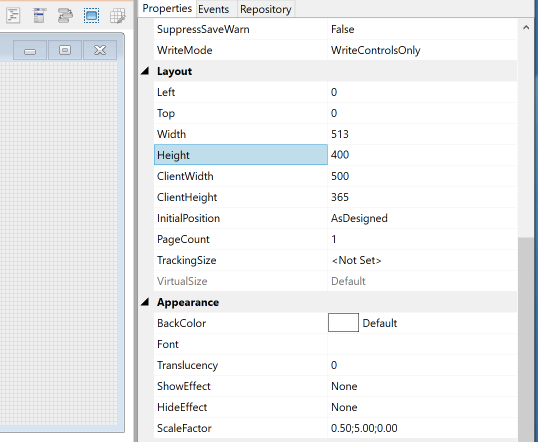
E.g. When set to a Height of 400, the saved form ClientHeight was 365. When the same form was reopened the ClientHeight was still 365, but the Height was now reported as 401.

Height, ClientHeight and High DPI

I run my primary and secondary monitors at different DPI settings to ensure that scaling works correctly, and in this case, at 192 DPI (i.e. scaled to 200%), it transpired that the integer rounding used during scaling was the issue because:

  • Setting the Height to 400 resulted in a ClientHeight of 365.
  • Setting the Height to 401 also resulted in a ClientHeight of 365.
  • Setting the ClientHeight to 365 resulted in a Height of 401.

I.e. setting the ClientHeight to a specific value, and then retrieving the form’s actual height in real pixels, and then scaling it back to 96 DPI (all values in the Form designer are shown and stored at 96 DPI), gave the extra pixel. Because we don’t record the Height in the form definition we have no way of knowing that the ClientHeight was set from a value of 400 rather than 401 when the form was reopened in the designer, so we have to go with the 401. Mystery solved!

Of course, this looks odd, but it’s just an artifact of the scaling calculations. The crucial value is the ClientHeight because this is the value that is recorded and used, and this is what needs to be preserved when forms are saved and reopened. To help put your mind at ease about this, the ClientWidth and ClientHeight properties have now been exposed (for forms only) in the Form Designer, so you can be confident that the correct size is always being maintained (ClientWidth and ClientHeight are normally runtime only properties).

E.g. In the following two images (saved and reopened) you can see that the pixel height has increased, but in both cases the ClientHeight (365) is preserved and is correct:

Image of form with a saved Height property of 400
Form saved with a Height of 400
Image of reopened form with a Height property of 401
Form reopened, now with a Height of 401

Conclusion

  • Windows XP taught us many years ago that the Width and Height properties are not reliable when creating a forms as they can produce inconsistent results on different systems, so we always rely on the ClientWidth and ClientHeight properties instead.
  • Don’t be concerned if you see a slightly different Height value when you reopen a form if you’re running at a high DPI setting – the crucial property is the ClientHeight value – as long as this is consistent there is no actual problem.
  • To make sure you can monitor this yourself the ClientWidth and ClientHeight properties have been exposed in the Form Designer, and you can edit these directly if you wish.

(Note: the ClientHeight and ClientWidth properties are only exposed after builds later than the current Beta 3 release)

(1) If you are not familiar with Client and Nonclient areas in Windows GUI programming you can find out more information here).

The Case of the Jumping Dialog

We recently noticed a new bug in the IDE where a dialog that hadn’t been updated for quite some time suddenly started misbehaving: it would appear at the wrong coordinates (0,0), and then jump to the proper ones.

At first glance this this looked like a classic case of creating the dialog in a visible state, and then moving it during the CREATE event, but checking the dialog properties in the Form Designer showed that the dialog’s Visible property was “Hidden”, so this wasn’t the source of the problem.

Stepping through the CREATE event in the debugger showed that the dialog was indeed created hidden, but then became visible during an RList() call that performed a SELECT statement, ergo RList() was allowing some queued event code to execute (probably from an internal call to the Yield() procedure) and that was changing the dialog’s VISIBLE property.

Checking the other events revealed that the SIZE event contained the following code:

Call Set_Property( @Window, "REDRAW", FALSE$ )

// Move some controls around

Call Set_Property( @Window, "REDRAW", TRUE$ )

The REDRAW property works by toggling an object’s WS_VISIBLE style bit – when set to FALSE$ the style bit is removed but the object is not redrawn. When set to TRUE$ the object is marked as visible and redrawn.

So, putting all this together: creating the dialog generated a queued SIZE event, which under normal circumstances would run after the CREATE event. However, the Yield() call in RList() executed the SIZE event before the dialog was ready to be shown, and the REDRAW operation made the dialog visible before the CREATE event had moved it to the correct position.

The fix for this was to ensure that the REDRAW property wasn’t set to TRUE$ if it’s original value wasn’t TRUE$, like so:

bRedraw = Set_Property( @Window, "REDRAW", FALSE$ )

// Move some controls around

If bRedraw Then
   Call Set_Property( @Window, "REDRAW", TRUE$ )
End

Conclusion

  • Always protect calls to the REDRAW property by checking its state before you set it, and then only turn it back on again if it was set to TRUE$ originally.
  • Calling Yield() can cause events to run out of the normal sequence, and you should be aware of this when writing your application.

PDF files and the FILEPREVIEW control

The next release of OpenInsight (version 10.1) includes a couple of updates to the FILEPREVIEW control as a result of using it extensively “out in the field”, and in this post we thought we’d look at these changes and why we made them in case you encounter the same issues yourself.

The Adobe problem

As mentioned in this previous post, the FILEPREVIEW control relies on third-party DLLs to provide “preview handlers” that OpenInsight uses to display the contents of files such as Word or PDF documents. However, what we found is that not all of these handlers are created equal and some can be quite problematic – in our case the Adobe PDF preview handler (supplied with the Adobe PDF Reader) proved to be one of these.

When the handler is loaded by OpenInsight one of the things that must be specified is the context in which it is created – this can be “in-process” (which means it runs in the same address space as OpenInsight) or “out-of-process” (which runs as a separate executable). This is done internally by a set of flags, and when you use the FILENAME property these flags are set to their default values which, until recently, had proved sufficient. However, extensive testing (by Martyn at RevSoft) found that the Adobe PDF preview handler had stopped working, and further investigation revealed that at some point recent versions of this had become sensitive to these context flags, so the first change we made was to provide a new SETFILENAME method, which allows you to set the flags yourself if need be:

The SETFILENAME method

RetVal = Exec_Method( CtrlEntID, "SETFILENAME", FileName, FileExtn, |
                      ContextFlags )
ParameterRequiredDescription
FileNameNoContains the name and path of the file to preview (can be null to remove the preview).
FileExtnNoSpecifies an explicit extension to use, overriding the extension passed in the FileName parameter.
ContextFlagsNoSpecifies a bit-mask of “CLSCTX_” flags used to create the preview handler. Defaults to:

  BitOr( CLSCTX_INPROC_SERVER$, CLSCTX_LOCAL_SERVER$ )

(Equates for these flags can be found in the MSWIN_CLSCTX_EQUATES insert record)

If the returned value is 0 then the operation was successful, otherwise this is an error code reported from Windows and can be passed to the RTI_ErrorText stored procedure to get the details:

E.g.

// Load the PDF in an out-of-process context
$Insert MSWin_ClsCtx_Equates

RetVal = Exec_Method( CtrlEntID, "SETFILENAME", "C:\Temp\Test.PDF", "",
                      CLSCTX_LOCAL_SERVER$ )
If RetVal Then
   // Problem...
   ErrorText = RTI_ErrorText( "WIN", RetVal )
End

Even with this you may still find problems, as the above code was fine for me, but not for Martyn, even though the PDF preview handler worked fine in Windows Explorer itself for both of us! So, we could only conclude that Adobe made sure that the handler worked with the Windows Explorer, but they were less concerned about third party applications (Per-monitor DPI settings are also not supported by the preview handler which is disappointing as well).

The Foxit solution

After some more testing we decided to switch to the Foxit PDF reader which worked as expected, so we would recommend using this for PDF previewing in future if needed.

Removing the FILENAME property at design-time

One other change we made was to remove the FILENAME property from the Form Designer so that it could not be set at design-time due to the following reasons:

  • We had reports that once it had been set it was very difficult to select the control again in the Form Designer, because it basically takes over mouse handling!
  • Document previewing is deemed to more of a run-time operation than a design-time operation.
  • The FILENAME property is deprecated in favor of the SETFILENAME method because the latter provides a more complete API. The FILENAME property is still supported however, and will be going forwards.

Conclusion

So, for v10.1 we have provided a new SETFILENAME method to provide a better interface for file-previewing which gives more feedback and more control, and you should use this in preference to the FILENAME property.

We have also found the Adobe PDF preview handler to be somewhat temperamental in use so would recommend the Foxit preview handler instead if you have problems with the former (Note however, that other preview handlers we use regularly, such as Word, Excel and PowerPoint have all worked well without any issues so far).

RList eXtended – New features for OpenInsight 10.1

RList is the OpenInsight tool for queries and ad hoc reports. OpenInsight 10 implements an extended version of RList via the new RTI_RLISTX stored procedure which offers additional features for selecting and reporting data. However, you do not need to change existing programs to take advantage of this.

This post takes a look at some of the new RList capabilities, along with a full description of the API and some code examples.

OLIST/RUN_REPORT syntax support

LIST statements can use the same syntax as RUN_REPORT or OLIST if the output is going to the screen or printer.

  • With OLIST LIST statements you can use keywords like GRID and PDFFILE. When the target is TARGET_PRINTER$, RList calls OLIST_PRODUCE to render the output.

Stacked selects

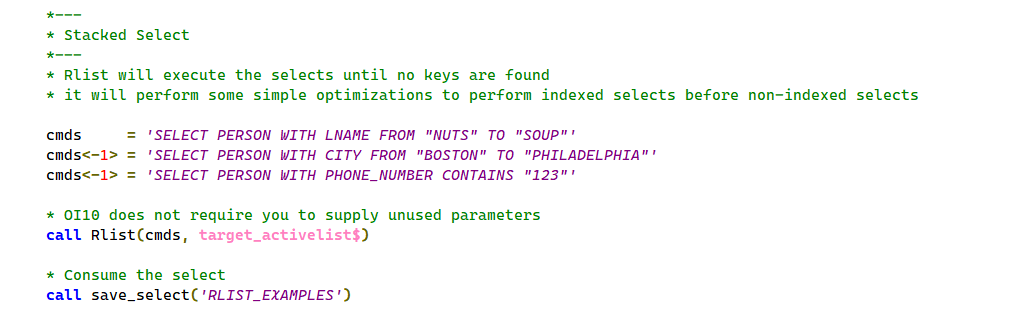
RList accepts a stack of SELECT statements and optionally one output (LIST) statement.  RList will execute SELECT statements until zero records are selected or a LIST statement is executed.  This allows developers to break a complex query into a series of simpler SELECT statements. Each subsequent SELECT statement refines the active select list.

RList to BRW

The TARGET_BRWDESIGN$ option will create a BRW (Banded Report Writer) report from an RList statement and open it in the BRW Designer for the developer to refine it. RList will prompt for the report group name.  The intent is to let you quickly rough out a report or even a set of master/detail reports using RList, then use the BRW Designer to refine the result.

RList to a variable

The TARGET_VARIABLE$ option will return the result of an RList statement into a variable.  For example, you can get a list of keys without using loop/readnext, you can populate an edit table with a SELECT statement, and you can obtain CSV, XML or JSON data by calling RList.  This is similar to the OpenInsight 9 SELECT_INTO stored procedure. The SELECT_INTO syntax is still supported and now calls RTI_RLISTX internally to implement the commands instead.

Cursor support

RList support allows you to specify a cursor number between 0 and 8, or -1 to use the next non-zero cursor. OpenInsight 9 offered cursor support but the RList interface did not. Cursors permit sub-queries that don’t corrupt the main select loop.  Sub-queries can operate on other BFS’s too. For example OpenInsight calculated columns can query SQL tables.

Reduce, Select by, ReadNext, Swap.Cursor, Make.list, Save_Select, Activate_Save_Select all support cursors in OpenInsight 10.

Performance enhancements

RList implements many optimizations in selecting and reporting: 

  • It will use indexes to refine an existing select, whereas previous versions only use indexes on a select without an active select list. 
  • Caching can reduce server IO so RList can now cache rows as they are read if it knows that the same rows will be sorted or reported – previous versions always read the records to select, sort and report.   
  • RESOLVE_SELECT, the program which finalizes a select, is improved. If you specify the number of rows, RESOLVE_SELECT exits when it reaches that number of rows rather than resolving all of the rows before applying the limit.
  • RList calls a new routine, RTI_CHAIN_SELECT, to pre-process selects which has some query optimization built in. For example, it will select on indexed fields before non-indexed, and hard fields before calculated. It performs sorts after the all selects are completed.

RList syntax in OpenInsight 10

Call RList( Statement, Target, TargetName, UserArg, DebugFlag )

Statement parameter

This parameter should contain one or more OpenList (SELECT/LIST) statements, separated by field marks.  RList will process each statement sequentially until it exhausts the list of keys, selects zero rows, or executes a LIST statement.  Note that in OpenInsight 10 RList accepts the same syntax as the classic OLIST or RUN_REPORT procedures as well as that used in TCL and any legacy OpenInsight 9 syntax.   

Target parameter

Target is a code indicating the desired output format.  OpenInsight supplies an insert which enumerates the options for target. See the RLIST_EQUATES insert record for more details.

Target ValueDescription
TARGET_PRINTER$0Sends the output of a LIST statement to the printer.
TARGET_CLIENT$1Sends the output of a LIST statement to the screen.
TARGET_VARIABLE$2Returns the output of a LIST statement to a variable.
TARGET_CALLBACK$3Triggers an RLIST_CALLBACK routine.
TARGET_SAVELIST$4Performs a SAVE_SELECT operation on the result of select statements.
TARGET_ACTIVELIST$5Activates a cursor with the result of select statements.
TARGET_LATENTLIST$6Creates a latent cursor for subsequent ReadNext processing.
TARGET_CHECKSYNTAX$7Checks the statements for valid syntax but does not execute them.
TARGET_CALLBACK_NOFMT$8Triggers an RLIST_CALLBACK routine but with no formatting or truncation applied to the returned values.
TARGET_BRWDESIGN$9Generate a Banded report,  and open it in the designer.
TARGET_BRWRUN$10Generate a Banded report, and execute immediately.

TargetName parameter

This parameter is polymorphic. You supply different values for different combinations of target and SELECT or LIST statements:

TargetSelect StatementLIST statement
TARGET_PRINTER$N/aN/a
TARGET_CLIENT$N/aN/a
TARGET_VARIABLE$RList will return the keys if the output format is “KEYS”.  See the UserArg parameter.RList will return the output into the variable. The format of the output depends on the UserArg parameter.
TARGET_CALLBACK$N/aThe name of an “RList callback” procedure.
TARGET_SAVELIST$The name of the list to save. The string you pass is the list name in the SYSLISTS table.  If you pass a space delimited string, RLIST will write the list to a table other than SYSLISTS using the first word as the name of the table and the second as the id of the list.N/a
TARGET_ACTIVELIST$N/aN/a
TARGET_LATENTLIST$N/aN/a
TARGET_CHECKSYSTAX$N/aN/a
TARGET_CALLBACK_NOFMT$N/aThe name of an “RList callback” procedure.  RList will not enforce column widths on the output. Used by SELECT_INTO in OpenInsight 9.
TARGET_BRWDESIGN$N/aThe name of the report group and report to generate.
TARGET_BRWRUN$N/aN/a

UserArg parameter

Another polymorphic parameter whose format depends on the chosen Target parameter:

TargetSelect StatementLIST statement
TARGET_PRINTER$N/aUserArg<2> = cursor number
TARGET_CLIENT$N/aUserArg<2> = cursor number
TARGET_VARIABLE$UserArg<1> = output format. “KEYS” is the only relevant format. UserArg<2> = cursor numberUserArg<1> = ResultFormat ( see below ) UserArg<2> = cursor number
TARGET_CALLBACK$N/aUserArg<2> = cursor number
TARGET_SAVELIST$UserArg<2> = cursor numberN/a
TARGET_ACTIVELIST$UserArg<2> = cursor numberN/a
TARGET_LATENTLIST$ N/a
TARGET_CHECKSYSTAX$N/aN/a
TARGET_CALLBACK_NOFMT$ N/a UserArg<2> = cursor number
TARGET_BRWDESIGN$N/aThe name of the report group and report to generate.
TARGET_BRWRUN$N/aN/a

ResultFormat

ResultFormat values are applicable when returning the result to a variable using the TARGET_VARIABLE$ Target.

ResultFormatDescription
ADOResult is an OLE record-set containing VARCHAR values.
CSVResult is a set of comma separated values, all values quoted, commas between columns, carriage-return/linefeed characters between rows.
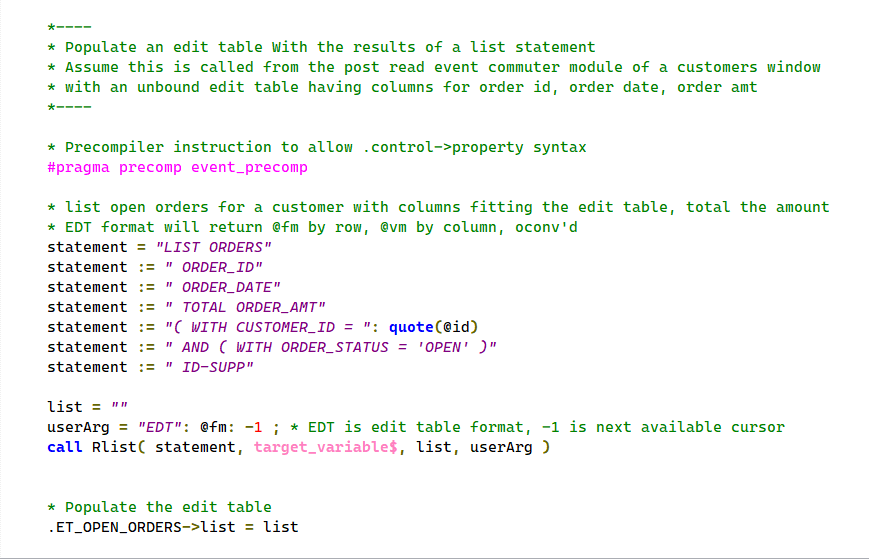
EDTEdit Table format.  Row 1 is column headings, @vm between columns, @fm between rows.  Useful for populating edit tables using RList statements
HTMLResult is an HTML table.
JSONResult is a JSON array of row objects, each column is an object in the row, multi-values are arrays.
KEYSResult is an @fm-delimited list of keys.
MVDefault format. Result is an array – @fm between columns, @rm between rows. Row 1 is the column headers.
TABResult is a set of tab-delimited column values, carriage-return/linefeed characters between rows.
TXTSame as TAB (see above).
XMLResult is an XML collection of rows, each row is an XML collection of columns.

Cursor Number

Cursor numbers specified in the UserArg parameter should be one of the following values:

  • An integer between 0 and 8
  • Null to use for cursor 0 (the default)
  • -1 for next available, which chooses an inactive cursor from 1 to 8

DebugFlag parameter

 N/a.

Code Examples

RList to PDF

RList To PDF

Stacked Queries

Sometimes it’s easier to execute a series of select statements rather than a single complex query. RList accepts a list of selects with an optional closing list statement. RList will execute until completed or no records are selected. If one of the conditions selects nothing then the list statement will not run.

Stacked queries

Query using a cursor

RList now supports cursors like REDUCE and SELECT BY. Indicate the cursor in field two of the UserArg parameter (in other words, UserArg<2>). Use this to execute sub queries. The sub query can return keys from a select or the output from a LIST statement.

Query using alternate cursor

Sub-query without corrupting the main select

Sub-query example

Sub query in calculated column

You can use sub-queries in calculated columns too. A cursor variable of -1 uses the next available cursor. This allows you to nest calculated columns which perform sub-selects. If you always use subqueries rather than direct calls to btree.extract then your logic will function with or without indexes. You can make indexing choices in the performance tuning stage of development rather than when designing the dictionaries.

Calculated column using sub-query

Return results to a variable

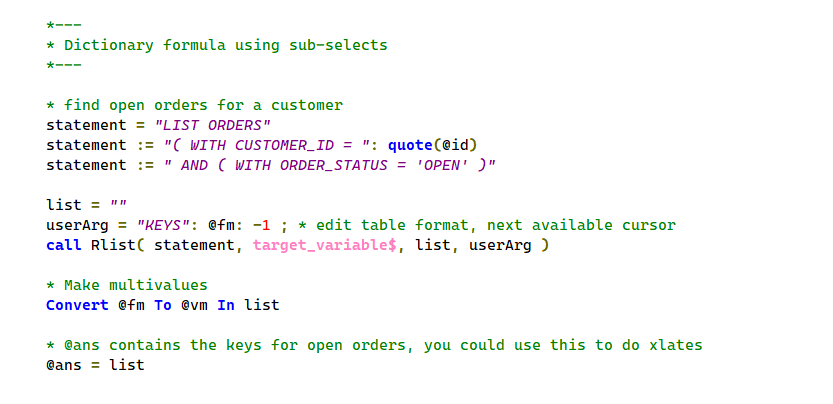
A new target type, TARGET_VARIABLE$ ( 2 ), will return the output to a variable. Pass a variable as the third parameter and an output format as the fourth. For SELECT statements, you must specify ‘KEYS’ as the output format. For LISTS statements you supply one of the formats listed above.

Select keys into a variable

Populating an edit table control

The “EDT” output format is convenient for loading data into edit table controls:

Populate an edit table control

Conclusion

RList for OpenInsight 10 offers new features as well as improved performance. Some of the features are available in previous versions but not via the RList interface. We tried to unify the disparate query capabilities (rlist, reduce, btree.extract, select_Into, olist ) under a single interface so you can focus on functionality and we can focus on performance.