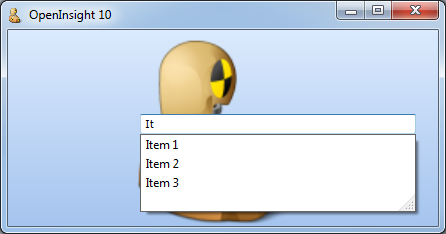
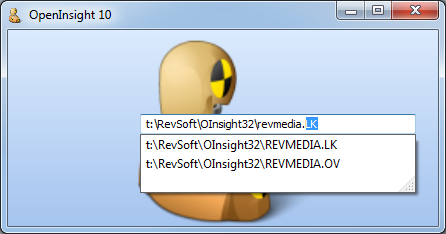
Tag Archives: Properties

Split-Button controls

Continuing with the recent focus on Button controls, this time we’re going to take a look at another new Button feature: Split-Buttons.

Split-Button

Split-Button using Aero styling

This button style was introduced with Windows Vista (*) and basically divides the button into two parts: The main part behaves like a normal push-button and fires a CLICK event when pressed, whilst the other part (normally drawn with a down arrow) fires a DROPDOWN event instead of a CLICK (if a context menu is linked to the button then this is displayed instead).

Split-Button support in OpenInsight 10 is exposed via the following properties:

  • SPLITBUTTON
  • SPLITWIDTH
  • SPLITSEPARATOR

SPLITBUTTON property

To enable Split-Button functionality the SPLITBUTTON property can be set to one of the following values:

  • “R” – creates a Split-Button with the main part to the left and the drop-down arrow part on the right.
  • “L” – creates a Split-Button with the main part to the right and the drop-down arrow part on the left.
Left-aligned Split-Button

Left-aligned Split-Button using XP-styling

Setting the SPLITBUTTON property to NULL (“”) removes the Split-Button styling from the control.

SPLITWIDTH property

This property specifies the size in pixels of the arrow part of the control.

SPLITSEPARATOR property

The functionality of a Split-Button can be changed by the SPLITSEPARATOR property.  By default the property is TRUE (“1”), but when set to FALSE (“0”) the line between the two parts of the button is removed and the entire button then behaves as a “drop-down button” – i.e. clicking the button displays a context menu or fires a DROPDOWN event.

Split-Button without separator

Aero-style Split-Button without separator

The Split-Glyph API

For those of you who really can’t help customizing as much as possible the Split-Button also supports an API to allow you to change the default down arrow in the drop-down part of the control. This is the “Split-Glyph API” and mirrors most of the normal Button control “Glyph API” described previously. The only difference is the name of the properties – they are all prefixed with “SPLIT”, i.e.

  • SPLITGLYPH
  • SPLITGLYPHCOLORKEY
  • SPLITGLYPHCOUNT
  • SPLITGLYPHFRAMECOUNT
  • SPLITGLYPHFRAMENUMBER
  • SPLITGLYPHOFFSET
  • SPLITGLYPHORIGIN
  • SPLITGLYPHSIZE
  • SPLITGLYPHTRANSLUCENCY
Split-Button with split-glyph

Split-Button with split-glyph using XP styling

(*) Although Microsoft only introduced Split-Buttons into Windows with the release of Vista, (and then only with visual styles enabled) it should be noted that the OpenInsight Split-Button is supported on XP as well, even running under the Windows Classic theme.

Classic mode Split-Button

Classic mode Split-Button

(Disclaimer: This article is based on preliminary information and may be subject to change in the final release version of OpenInsight 10).

Button controls

Perhaps one of the controls most in need of a face-lift in OpenInsight is the Button (a.k.a PUSHBUTTON) control, and in this post we’ll take a look at some of the new features we’ve added to it for version 10.

Image API

Buttons in OpenInsight have always supported background images and version 10 is no different.  However we’ve extended the number of image states from 6 to 10 to give you a few more options if you want to use them:

  1. Up
  2. Down
  3. Disabled
  4. <not used>
  5. Up with focus
  6. Down with Focus
  7. Hot
  8. Hot with focus
  9. Default
  10. Default with focus

Of course you don’t have to supply all of these images – the system will attempt to pick the closest match based on the IMAGECOUNT supplied.  Access to the image properties is exposed via the normal Image API with the exception of the IMAGENUMBER property which is managed automatically depending on the button state.

Glyph API

One of the biggest drawbacks with using buttons in previous versions of OpenInsight is that images have only ever been applied to the background as a whole.  In order to create a button with an icon (or glyph, as we’ll refer to it henceforth) it has always been necessary to provide an image file with the entire button background drawn on it as well as the required glyph and text.  This makes it very difficult to provide a solution that looks good across different color schemes and visual styles, and it also makes any sort of runtime customization problematic too.

For version 10 a new API has been added for buttons called the “Glyph API”. This allows you to specify an image for the button that is drawn on top of the normal background like so:

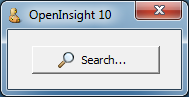
Classic-style button with glyph

Classic-style button with glyph

XP-style button with glyph

XP-style button with glyph

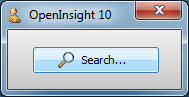
Aero-style button with glyph

Aero-style button with glyph

Win8-style button with glyph

Windows 8-style button with glyph

It is exposed via the following properties:

  • GLYPH (similar to the BITMAP or IMAGE property)
  • GLYPHALIGN
  • GLYPHCOLORKEY
  • GLYPHCOUNT
  • GLYPHFRAMECOUNT
  • GLYPHFRAMENUMBER
  • GLYPHOFFSET
  • GLYPHORIGIN
  • GLYPHLAYOUT
  • GLYPHSPACING
  • GLYPHSIZE
  • GLYPHTRANSLUCENCY

These properties are very similar to their counterparts in the normal Image API with the exception of the following Button-glyph specific ones:

GLYPHLAYOUT property

This property specifies how the glyph is laid out in relation to the text, and can be one of the following values:

  • “0” – Glyph to the left, text to the right
  • “1” – Glyph to the top, text to the bottom
  • “2” – Glyph to the right, text to the left
  • “3” – Glyph to the bottom, text to the top.
Buttons showing  glyph layouts

Aero-style buttons showing glyph layouts

GLYPHSPACING property

This property is simply the number of pixels between the glyph and the text.

Where’s the GLYPHNUMBER property?

Just as the Button Image API has no IMAGENUMBER property there is no corresponding GLYPHNUMBER property either – this is because you can provide more than one image for a glyph and the system will automatically select one for you based on the button state (just like with background images).  These states are:

  1. Button up
  2. Button down
  3. Button disabled
  4. Button hot
  5. Button default

Note that if you don’t supply a disabled Glyph image and you disable the button the system will draw a grayed version of the glyph for you:

Button with disabled glyph

Aero-style buttons with system-drawn disabled glyph

Flat buttons

Flat “toolbar” style buttons are supported by the boolean FLAT property.  I.e. the actual background is not painted until the mouse is moved over the button.

Flat button

Aero-style flat button

Flat button with translucency

Aero-style flat buttons with 50% translucency

Custom colors

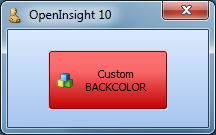
The button BACKCOLOR property fully supports custom colors and generates a set of matching 3D highlight and shadow colors to use when rendering.

Button with red BACKCOLOR

XP-style button with red BACKCOLOR

The FORECOLOR property also makes a welcome return and is now respected regardless of the visual style in use.

Button with red FORECOLOR

Aero-style button with red FORECOLOR

Extended mouse support

Like the updated Label control the Button now supports the following new properties when the button is in the “hot” state (i.e. the mouse is moving over it):

  • HOTFONT
  • HOTFORECOLOR
  • HOTBACKCOLOR

It also supports the new MOUSEOVER event so you can easily track mouse movements without having to resort to using WINMSG events.

Text Alignment and position

TEXTORIGIN property is provided that allows you to specify the exact XY position that you wish the text to be drawn at in a similar manner to the GLYPHORIGIN property.  Horizontal text alignment is also supported by the TEXTALIGN property.

(Disclaimer: This article is based on preliminary information and may be subject to change in the final release version of OpenInsight 10).

Hyperlink controls

Following on from the previous post on Label controls another new item we’ve added to OpenInsight is the Hyperlink control, which is essentially a specialized Label control that allows you to implement clickable links on your forms.

Hyperlink Control

Hyperlink Control

Barring HTML rendering it supports all the other properties of a Label control as well as adding a few others:

  • AUTOUNDERLINE
  • LINK
  • LINKCURSOR
  • LINKRESULT
  • SHOWVISITED
  • VISITEDFORECOLOR

AUTOUNDERLINE property

If this property is TRUE then the control ensures the text is underlined when the mouse hovers over it.

LINK property

This property contains the command string to execute when the link is (single) clicked. it can be any valid Windows command string (internally it is passed to the Windows ShellExecute function).

Note that that the CLICK and DBLCLK events are still fired as normal even if the LINK property is blank, so you still have full control over the hyperlink target.

LINKCURSOR property

This specifies the cursor to use when the mouse is over the link text.  It defaults to the standard “hand” cursor but can be set in the same way as the normal OpenInsight CURSOR property.

LINKRESULT property

When the command string in the LINK property is executed the result of the operation (as returned from the ShellExecute function) is placed in the LINKRESULT property for further examination if you wish (ShellExecute normally returns a value < 32 if there is a problem executing a command).

SHOWVISITED property

If this property is TRUE the link will be displayed using the VISITEDFORECOLOR property when it has been clicked at least once.

VISITEDFORECOLOR property

This property specifies the color to use for visited links (i.e. those that have been clicked and have a SHOWVISITED property of TRUE).

The GO method

The Hyperlink control also supports a new GO method that executes the contents of the LINK property as though it had been clicked.  The return value from this method is the same as the value returned in the LINKRESULT property.

(Disclaimer: This article is based on preliminary information and may be subject to change in the final release version of OpenInsight 10).

Label controls

Over the past few posts we’ve taken a look at some of the new controls we’ve added to OpenInsight in version 10, but during the development process we’ve also taken the opportunity to upgrade some of the existing controls as well.  In this post we’ll take a look at the humble Label (or STATIC) control and examine some of the new features that have been implemented for it.

Background Images

The Label control now exposes the full Image API in the same way as the version 10 OpenInsight WINDOW object does.

Label control with background image

Label control with background image

Gradient background colors

The BACKCOLOR property now supports gradients in the same way that the current OpenInsight WINDOW object does, along with the associated GRADIENTSTYLE property.

Label control with gradient background

Label control with gradient background

Translucent background

The Label control may use a translucent background via the TRANSLUCENCY property.

Label control with translucent background

Label control with translucent background

Aero Glass support

As part of OpenInsight’s Aero Glass support, transparent labels drawn on glass in Vista and Windows 7 have the recommended “glow effect” enabled to improve readability:

Label controls on Aero Glass

Transparent Label controls on Aero Glass

Text Alignment

Vertical as well as horizontal text alignment is now supported via the TEXTALIGN property:

  • “0” Top-Left
  • “1″ Top-Center
  • “2″ Top-Right
  • “3″ Middle-Left
  • “4″ Centered
  • “5″ Middle-Right
  • “6″ Bottom-Left
  • “7″ Bottom-Center
  • “8″ Bottom-Right
Label control with bottom-center text alignment

Label control with bottom-center text alignment

A TEXTORIGIN property is also exposed that allows you to specify the exact XY position that you wish the text to be drawn at in a similar manner to the standard IMAGEORIGIN property.

Mouse-over support

Label controls can now respond to a mouse-over or “hot” state via the new HOTFORECOLOR, HOTFONT and HOTBACKCOLOR properties.  When set these properties are used in place of their standard counterparts (FORECOLOR, FONT and BACKCOLOR) when the mouse is over the control.

Mouse event support

The following standard events are now exposed for Label controls:

  • CLICK
  • DBLCLK

In addition to this we’ve also provided a new MOUSEOVER event along with a notification flag for when the mouse enters and exits a control (We intend to extend the MOUSEOVER event to cover all OpenInsight controls).

Edge styling

By default normal Windows Label controls actually support a “edge-style” that allows them to have a sunken or etched border, or even display themselves as a single vertical or horizontal etched line.  Although this capability can be used in earlier versions of OpenInsight via raw style-bit manipulation we’ve exposed it fully in Version 10 via the EDGESTYLE property.  This can be one of the following values:

  • “0” – No border
  • “1” – Sunken border
  • “2” – Etched Horizontal line along the top edge
  • “3” – Etched Vertical line along the left edge
  • “4” – Etched Frame
Label control with a sunken border

Label control with a sunken border

Label control with an etched frame

Label control with an etched frame

Text handling

We’ve exposed a couple of new text handling properties: AUTOELLIPSES and WORDWRAP.  The former allows truncated text to be suffixed with the ellipses string  “…”, while the latter allows text to wrap in an effort to avoid truncation where possible.

Label control with AUTOELLIPSES enabled

Label control with AUTOELLIPSES enabled

HTML Text rendering

The Label control now supports simple inline HTML rendering via the boolean DRAWHTML property.  The following tags are currently supported:

  • <b>Bold</b>
  • <i>Italic</i>
  • <u>Underline</u>
  • <strike>Strikeout</strike>
  • <sub>Subscript</sub>
  • <sup>SuperScript</sup>
  • <font>Font</font>
  • <br>

The font tag supports the following attributes:

  • color
  • bgcolor
  • face
  • size
Label control with HTML text rendering

Label control with HTML text rendering

 (As with the aforementioned MOUSEOVER support we’re intending to extend HTML text rendering to other controls where appropriate)

(Disclaimer: This article is based on preliminary information and may be subject to change in the final release version of OpenInsight 10).

Progress Bar controls

One of the new controls supported by OpenInsight 10 is the Windows Progress Bar control which is used to display the progress of lengthy operations.

Progress Bar

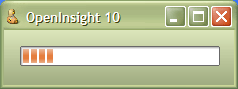
Windows 7 Aero Progress Bar

Windows XP Progress Bar

Windows XP Progress Bar

It is a fairly simple control and supports the following properties:

  • BORDER
  • ERRORCOLOR
  • MARQUEE
  • NORMALCOLOR
  • PAUSEDCOLOR
  • RANGE
  • SHOWTEXT
  • SMOOTH
  • STATE
  • STEP
  • SYNCTASKBAR
  • TEXT
  • TRANSLUCENCY
  • VALUE
  • VERTICAL

And the following methods:

  • DECREMENT
  • INCREMENT

BORDER property

Setting this boolean property to TRUE (“1”) draws a border around the control.  This is the default value.

XP Progress Bar without border

Translucent XP Progress Bar without a border

ERRORCOLOR property

This property is a standard color value and sets the color of the bar when it is in the “error” state (see the STATE property below).  Depending on the visual style in use this property normally defaults to a red color.

Red Progress Bar

Windows Classic smooth style Progress Bar with an ERRORCOLOR of 255 (red)

MARQUEE property

This property is an integer value that contains the time in milliseconds between marquee animation updates.  Setting it to 0 stops the marquee animation.

Progress Bar with marquee effect

Aero Progress Bar with a MARQUEE property of 50 (i.e. it animates every 50 ms)

XP Progress Bar with marquee effect

Windows XP Progress Bar with a MARQUEE property of 50

NORMALCOLOR property

This property is a standard color value and sets the color of the bar when it is in the “normal” state (see the STATE property below).  Depending on the visual style in use this property normally defaults to a green color, though in other schemes like “XP Olive” this defaults to an orange color instead.

Purple Progress Bar

Windows 7 Aero progress Bar with a purple NORMALCOLOR (255,0,255)

PAUSEDCOLOR property

This property is a standard color value and sets the color of the bar when it is in the “paused” state (see the STATE property below).  Depending on the visual style in use this property normally defaults to an amber or yellow color.

Windows 7 Aero paused progress bar

Windows 7 Aero segmented Progress Bar with a STATE of “3” (paused)

RANGE property

This property is an @fm-delimited array of two integers containing the upper and lower limits of the progress bar.

<1> Low limit
<2> High Limit

The VALUE property must be between these two values.

SHOWTEXT property

Setting this property to TRUE (“1”) will display the contents of the TEXT property in the center of the progress bar.  The default is FALSE ( “0”).

SMOOTH property

Setting this property to TRUE (“1”) causes the progress indicator to be drawn as a continuous bar rather than in the usual segmented style.

Smooth Progress Bar

Windows Classic Smooth Progress Bar – i.e. a SMOOTH style of TRUE (“1”)
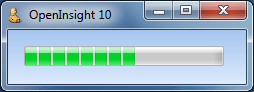
Segmented Progress Bar

Windows 7 Aero segmented Progress Bar – i.e. a SMOOTH style of FALSE (“0”)

STATE property

This property sets the visual state of the progress bar.  It can be one of the following values:

  • “1” – Normal (green)
  • “2” – Error (red)
  • “3” – Paused (yellow)

Each of these states has a default color as indicated above but this can be changed by one of the bar color properties (NORMALCOLOR, ERRORCOLOR and PAUSEDCOLOR).

Examples:

Progress Bar Error

Windows 7 Aero Progress bar with a STATE property of 2

Progress Bar Paused

Windows 7 Aero Progress bar with a STATE property of 3

STEP property

This property is a simple integer and is used in conjunction with the INCREMENT method.  If the latter is called with no value the progress bar is incremented by the amount specified in this property.

SYNCTASKBAR property

When set to TRUE (“1”) the parent form’s taskbar button is automatically updated to mirror the state of the Progress Bar control (as per our previous post on Taskbar Integration).
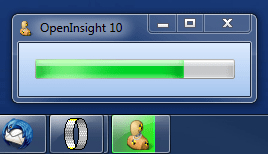
Synchronized Progress Bar

Windows 7 Aero Progress Bar with SYNCTASKBAR set to TRUE (“1”)

This property has no effect unless the application is running on Windows 7 or higher.

TEXT property

This property is the same as the standard TEXT property.  However, any occurrences of the substring “%p%” within the text will be replaced with the current percentage complete.
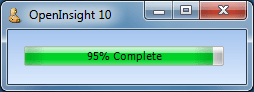
Progress Bar with TEXT

Windows 7 Aero Progress Bar with a TEXT property of “%p% Complete”

TRANSLUCENCY property

This property specifies the transparency of the control’s background (i.e. the progress bar itself is not affected).  It is based on simple percentage amount, “0″ being fully opaque and “100″ being fully transparent (and therefore not visible).
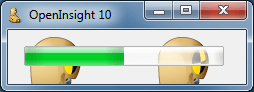
Translucent Progress Bar

Windows 7 Aero Progress Bar with a TRANSLUCENCY of 50

VALUE property

This simple integer property sets the current value (position) of the progress bar.  It should be a value between the limits set by the RANGE property.
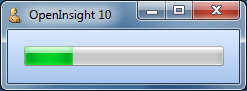
Progress Bar 25% complete

Windows 7 Aero Progress Bar with a RANGE of [0,200] and a VALUE of 50

VERTICAL property

Setting this property to TRUE (“1”) draws the progress bar in a vertical fashion – i.e. it increments from the bottom to the top.

Vertical Progress Bar

Windows 7 Aero Progress Bar with a VERTICAL property of TRUE (“1”)

DECREMENT method

exec_Method( ctrlEntID, "DECREMENT", amount )

This method decrements the progress bar by a specified amount.  If no amount is specified the bar is decremented by the value contained in the STEP property instead.

INCREMENT method

exec_Method( ctrlEntID, "INCREMENT", amount )

This method increments the progress bar by a specified amount.  If no amount is specified the bar is incremented by the value contained in the STEP property instead.

Further reading

More information on Progress Bars can be found on the MSDN site here, along with some user interface guidelines here.

(Disclaimer: This article is based on preliminary information and may be subject to change in the final release version of OpenInsight 10).

Date and Time Picker controls

Another Windows Common Control exposed by OpenInsight 10 is the Date and Time Picker (DTP) control. This presents a simple interface for a user to enter date and/or time information in a standard or custom format.  It also provides an option to display a drop-down calendar for picking a date.

Date and Time Picker control

Date and Time Picker control

Date and Time Picker control with calendar

Date and Time Picker control with calendar

It supports the following properties:

  • CALALIGN
  • CALBACKCOLOR
  • CALFONT
  • CALFORECOLOR
  • CALMONTHBACKCOLOR
  • CALTITLEBACKCOLOR
  • CALTITLEFORECOLOR
  • CALTRAILINGFORECOLOR
  • CHECK
  • CHECKBOX
  • CUSTOMFORMAT
  • FORMAT
  • IDEALSIZE
  • MAXVALUE
  • MINVALUE
  • UPDOWN
  • VALUE

It supports the following method:

  • CLOSECAL

And the following events:

  • CHAR
  • CHANGED
  • CLOSEUP
  • DROPDOWN
  • GOTFOCUS
  • LOSTFOCUS

CALALIGN property

This property controls the alignment of the drop-down calendar and can be one of the following values:

  • “L” (Left – the default)
  • “R” (Right)

CALBACKCOLOR property

This property is an RGB color value that specifies the background color displayed between months of the drop-down calendar.  Setting this property has no effect if visual styles are enabled.

CALFONT property

This property specifies the font of the drop-down calendar – it has the same structure as the regular OpenInsight FONT property.  Setting this property has no effect if visual styles are enabled.

CALFORECOLOR property

This property is an RGB color value that specifies the text color of the drop-down calendar. Setting this property has no effect if visual styles are enabled.

CALMONTHBACKCOLOR property

This property is an RGB color value that specifies the background color displayed within the month of the drop-down calendar.  Setting this property has no effect if visual styles are enabled.

CALTITLEBACKCOLOR property

This property is an RGB color value that specifies the background color displayed in the title of the drop-down calendar.  Setting this property has no effect if visual styles are enabled.

CALTITLEFORECOLOR property

This property is an RGB color value that specifies the text color displayed in the title of the drop-down calendar.  Setting this property has no effect if visual styles are enabled.

CALTRAILINGFORECOLOR property

This property is an RGB color value that specifies the text color used to display the header day and trailing day text in the drop-down calendar.  Setting this property has no effect if visual styles are enabled.

CHECK property

This is a boolean value that specifies if the DTP checkbox is ticked.  It only applies if the DTP control contains a checkbox (see the CHECKBOX property below).

CHECKBOX property

This is a boolean value that specifies if a checkbox is shown within the DTP control. Normally the DTP control always contains a date/time value (i.e. it is never considered empty).  However if a checkbox is shown then it is only considered to contain a valid date/time if the checkbox is ticked (see the CHECK property above).

CUSTOMFORMAT property

By default the format of the date and time displayed by the DTP control is one of the standard formats as defined in the user’s Windows environment settings:

Windows date and time settings

Windows date and time settings

The FORMAT property (see below) can be used to specify one of these.

However, it is possible to use a custom format and this can be set using either a standard Windows format string or a standard Revelation Date and Time IConv/Oconv format (“D”, “DT”  and “MT”) which sets the underlying Windows format appropriately.

e.g.  “D4/E” will be translated to “dd/MM/yyyy” and so on.

FORMAT property

This property specifies the format of the date and time displayed in the control and can be one of the following values:

  • “0” – Custom format (set when using the CUSTOMFORMAT property – don’t set this yourself!)
  • “1” – Windows Long Date format
  • “2” – Windows Short Date format
  • “3” – Windows Time format

IDEALSIZE property

This get-only property returns the size needed to display the control without any clipping as an @fm-delimited array:

<1> Ideal width in pixels
<2> Ideal height in pixels

MAXVALUE property

Specifies the maximum date and time that can be entered in the control. This is a standard Revelation DateTime format of:

<date> : "." : <time>

Where date is the number of days elapsed since 31/12/1967, and time is the fraction (percentage) of the day that has elapsed.

MINVALUE property

Specifies the minimum date and time that can be entered in the control. This is a standard Revelation DateTime format of:

<date> : "." : <time>

Where date is the number of days elapsed since 31/12/1967, and time is the fraction (percentage) of the day that has elapsed.

UPDOWN property

By default the DTP control displays a button to access a drop-down month calendar for modifying the date.  Setting this property to TRUE (“1”) displays a Windows UpDown control to modify date-time values instead.

Date and Time Picker with an UpDown control

Date and Time Picker with an UpDown control

VALUE property

This property specifies the current value of the DTP control in the standard Revelation DateTime format of:

<date> : "." : <time>

Where date is the number of days elapsed since 31/12/1967, and time is the fraction (percentage) of the day that has elapsed.

While the TEXT property is supported the VALUE property should be used to access the DTP date-time values to avoid possible complications with custom formatting strings.

CLOSECAL method

This method simply closes a dropped-down month calendar. It takes no arguments.

call exec_Method( ctrlEntID, "CLOSECAL" )

Further reading

More information on the Date and Time Picker control can be found on the MSDN site here,

(Disclaimer: This article is based on preliminary information and may be subject to change in the final release version of OpenInsight 10).

Up-Down controls

The Up-Down control is a Windows Common Control that is basically a simplified scrollbar used to increment and decrement values such as a scroll position or numeric values in a linked control (a.k.a the “buddy” control).

Up-Down control  with EditLine buddy

Up-Down control with an EditLine buddy (i.e. a “spin-control”)

It supports the following properties:

  • ALIGN
  • ARROWKEYS
  • AUTOUPDATEBUDDY
  • BUDDY
  • HEXADECIMAL
  • HORIZONTAL
  • HOTTRACK
  • INCREMENT
  • RANGE
  • SHOWTHOUSANDS
  • VALUE
  • WRAP

And the following events:

  • GOTFOCUS
  • HSCROLL
  • LOSTFOCUS
  • VSCROLL

ALIGN property

This property controls the position of the Up-Down control relative to its buddy control. It can be one of the following values:

  • Null (empty)
  • “L” – left
  • “R” – right

If set to “R” the control positions itself to the right of its buddy control as per the image above (the width of the buddy control is shortened automatically to accommodate this).  If set to “L” the Up-Down control is positioned to the left instead, and the buddy control is re-sized and re-positioned accordingly.

ARROWKEYS property

This is a boolean property. Setting it to TRUE (“1”) causes the buddy control to respond to the Up and Down arrow keys to increment and decrement the VALUE of the Up-Down control.

AUTOUPDATEBUDDY property

This is a boolean property. Setting it to TRUE (“1”) causes the Up-Down control to set the text of its buddy control when it’s own VALUE property changes.

BUDDY property

This property specifies the fully-qualified name of a control (usually an EDITLINE) to associate with the Up-Down control (i.e. it sets the “buddy control”).

HEXADECIMAL property

This is a boolean property. Setting it to TRUE (“1”) causes the Up-Down control to update its buddy control with a hexadecimal string rather than a decimal one.

HORIZONTAL property

This is a boolean property. Setting it to TRUE (“1”) causes the Up-Down control to render it’s arrows left and right rather than up and down.

HOTTRACK property

This a boolean property, Setting it to TRUE (“1”) causes the arrows on the Up-Down control to be highlighted as the mouse passes over them.

INCREMENT property

This property specifies the amount by which the VALUE changes when the buttons are clicked.  By default this property is “1”.

RANGE property

This property is an @fm-delimited array of two integers containing the lower and upper limits of the Up-Down control.

<1> Low limit
<2> High Limit

The VALUE property must be between these two values.

SHOWTHOUSANDS property

This a boolean property, Setting it to TRUE (“1”) shows a “thousands-separator” (a comma) for every three decimal digits when displaying the VALUE in a buddy control.

VALUE property

This property specifies the current position of the Up-Down control.

WRAP property

This a boolean property, Setting it to TRUE (“1”) causes the VALUE to “wrap” if it is incremented or decremented beyond its RANGE.

Further reading

More information on the Up-Down control can be found on the MSDN site here,

(Disclaimer: This article is based on preliminary information and may be subject to change in the final release version of OpenInsight 10).

Taskbar Integration – Progress Bars

One of the most useful features introduced with the Windows 7 taskbar was the ability to display progress information directly on your form’s taskbar button.  OpenInsight 10 exposes this functionality via two new WINDOW properties:

  • PROGRESSVALUE
  • PROGRESSSTATE

PROGRESSVALUE Property

This is a simple @fm-delimited array composed of two fields that contain the current progress value (i.e. the proportion complete) and the maximum progress value (i.e. the value when completed).

Example:

Progress Bar 50% complete

PROGRESSVALUE of 50,100

Note that this property is set-only.

PROGRESSSTATE Property

This property specifies the appearance of the progress bar. It can be one of the following values:

  • “0” – No progress Information
  • “1” – Normal (green)
  • “2” – Error (red)
  • “3” – Paused (yellow)
  • “4” – Indeterminate (this results in a marquee-style effect)

Example:

Progress Bar Error

PROGRESSSTATE of 2

Progress Bar Paused

PROGRESSSTATE of 3

Note that this property is set-only.

Further reading

More information on taskbar Progress Bars can be found here, along with some guidelines on their usage here.

(Disclaimer: This article is based on preliminary information and may be subject to change in the final release version of OpenInsight 10).

Taskbar Integration – Overlay Icons

We have already looked at the TASKBARID property in an earlier posting but there are also several other properties that allow your OI forms to integrate closely with the taskbar via such items as overlay icons and progress bars.  In this post we’ll take a quick look at the new OVERLAYICON property.

OVERLAYICON property

This property allows you to specify an icon that will be superimposed onto the bottom right of your form’s taskbar button.  It is designed to highlight a status change in your program and is used by applications such as MSN Messenger to denote the user’s online status.

This property is similar to the standard ICON property where you simply specify the name and path of an icon file, or it’s DLL resource ID.

Example:

Form without an overlay icon

Form without an overlay icon

Form with an overlay icon

Form with an overlay icon

Further reading

More information on Overlay Icons can be found here, along with some guidelines on their usage here.

(Disclaimer: This article is based on preliminary information and may be subject to change in the final release version of OpenInsight 10).

Editline Autocompletion

One of the new capabilities we’ve added to Editline controls in OpenInsight 10 is Autocompletion.  This is a common feature found in many modern programs where the system attempts to predict a word or sentence that the user is entering without actually typing it in completely.

To enable this the Editline control now supports the following new properties:

  • AUTOCOMPLETEMODE
  • AUTOCOMPLETESOURCE
  • AUTOCOMPLETELIST

AUTOCOMPLETEMODE property

This property specifies if Autocomplete is active, and if so how the suggested string is displayed. It can be one of the following values:

  • “0” – Autocomplete is disabled
  • “1” – Autocomplete is enabled and in “append” mode: the remainder of the suggested string is added to the end of the characters the user has typed in and highlighted.
  • “2” – Autocomplete is enabled and in “suggest” mode:  the system displays a drop-down list of possible matches to what the user is typing.
  • “3” – Autocomplete is enabled and in “suggest-append” mode. This is combination of the previous two modes.

AUTOCOMPLETESOURCE property

This property specifies where the list of possible suggested strings is obtained from.  It can be one of the following values:

  • “0” – Custom List: a list set via the AUTOCOMPLETELIST property
  • “1” – File List: a list of matching file and directory names supplied by Windows
  • “2” – Directory List: a list of matching directory names supplied by Windows
  • “3” – History List: a list of matches against the user’s URL history list
  • “4” – MRU List: a list of matches against the user’s MRU list
  • “5” – Shell List: a list of matches against all objects in the Windows Shell Namespace

AUTOCOMPLETELIST property

This property specifies an @fm-delimited list of suggested strings to use when the AUTOCOMPLETESOURCE property is “0”

Examples:

Autocomplete from a custom list

AUTOCOMPLETESOURCE 0, AUTOCOMPLETEMODE 2

Autocomplete from a file list

AUTOCOMPLETESOURCE 1, AUTOCOMPLETEMODE 3

Autocomplete from URL history

AUTOCOMPLETESOURCE 3, AUTOCOMPLETEMODE 1

(Disclaimer: This article is based on preliminary information and may be subject to change in the final release version of OpenInsight 10).