Category Archives: Presentation Server

Contains posts about the OpenInsight Presentation Server, which is the module responsible for managing GUI windows and controls on the Windows Desktop.

Taskbar Integration – Overlay Icons

We have already looked at the TASKBARID property in an earlier posting but there are also several other properties that allow your OI forms to integrate closely with the taskbar via such items as overlay icons and progress bars.  In this post we’ll take a quick look at the new OVERLAYICON property.

OVERLAYICON property

This property allows you to specify an icon that will be superimposed onto the bottom right of your form’s taskbar button.  It is designed to highlight a status change in your program and is used by applications such as MSN Messenger to denote the user’s online status.

This property is similar to the standard ICON property where you simply specify the name and path of an icon file, or it’s DLL resource ID.

Example:

Form without an overlay icon

Form without an overlay icon

Form with an overlay icon

Form with an overlay icon

Further reading

More information on Overlay Icons can be found here, along with some guidelines on their usage here.

(Disclaimer: This article is based on preliminary information and may be subject to change in the final release version of OpenInsight 10).

Editline Autocompletion

One of the new capabilities we’ve added to Editline controls in OpenInsight 10 is Autocompletion.  This is a common feature found in many modern programs where the system attempts to predict a word or sentence that the user is entering without actually typing it in completely.

To enable this the Editline control now supports the following new properties:

  • AUTOCOMPLETEMODE
  • AUTOCOMPLETESOURCE
  • AUTOCOMPLETELIST

AUTOCOMPLETEMODE property

This property specifies if Autocomplete is active, and if so how the suggested string is displayed. It can be one of the following values:

  • “0” – Autocomplete is disabled
  • “1” – Autocomplete is enabled and in “append” mode: the remainder of the suggested string is added to the end of the characters the user has typed in and highlighted.
  • “2” – Autocomplete is enabled and in “suggest” mode:  the system displays a drop-down list of possible matches to what the user is typing.
  • “3” – Autocomplete is enabled and in “suggest-append” mode. This is combination of the previous two modes.

AUTOCOMPLETESOURCE property

This property specifies where the list of possible suggested strings is obtained from.  It can be one of the following values:

  • “0” – Custom List: a list set via the AUTOCOMPLETELIST property
  • “1” – File List: a list of matching file and directory names supplied by Windows
  • “2” – Directory List: a list of matching directory names supplied by Windows
  • “3” – History List: a list of matches against the user’s URL history list
  • “4” – MRU List: a list of matches against the user’s MRU list
  • “5” – Shell List: a list of matches against all objects in the Windows Shell Namespace

AUTOCOMPLETELIST property

This property specifies an @fm-delimited list of suggested strings to use when the AUTOCOMPLETESOURCE property is “0”

Examples:

Autocomplete from a custom list

AUTOCOMPLETESOURCE 0, AUTOCOMPLETEMODE 2

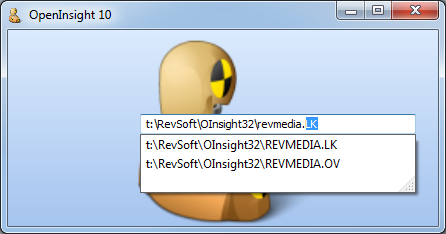
Autocomplete from a file list

AUTOCOMPLETESOURCE 1, AUTOCOMPLETEMODE 3

Autocomplete from URL history

AUTOCOMPLETESOURCE 3, AUTOCOMPLETEMODE 1

(Disclaimer: This article is based on preliminary information and may be subject to change in the final release version of OpenInsight 10).

OpenInsight and High-DPI

With the increasing popularity of high-resolution monitors, one of the biggest usability problems today is the display size of text and UI controls, because they appear smaller as the screen resolution increases. The recommended advice to overcome this is to increase the DPI (dots-per-inch) setting of the system, thereby enlarging these elements and making them easier to see and read. If you’ve been using Windows Vista and above you’ve probably already seen this Control Panel applet that allows you to easily change your DPI settings:
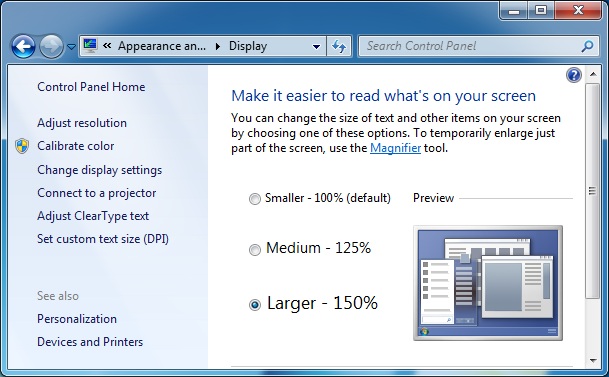
DPI Control Panel Applet

Windows 7 DPI Control Panel Applet

However, unless an application is designed to be DPI-aware this can result in some unsatisfactory results, such as over-large fonts, clipped controls and blurry windows. This is because many older Windows applications assume a constant DPI (96) when setting font and size coordinates and they do not apply any scaling to these values, thereby resulting in the aforementioned problems.

(NB. The “magic number” of 96 that you’ll see throughout this post is due to the fact that at 96 DPI one logical pixel is equal to one screen pixel – this is the “100%” setting in the Control Panel applet shown above).

In an effort to accommodate these applications Microsoft have introduced a couple of OS features over the years:

  • On Windows XP the system fonts and some system UI elements are scaled up at runtime, but this leads to the common problem of text appearing larger and being clipped as the actual size of the bounding control is usually not scaled.
  • On Windows Vista and above a feature called “DPI-virtualization” automatically scales windows belonging to an application not marked as “DPI-aware” – in effect they are rendered at 96 DPI to an off-screen bitmap, resized, and then drawn to the screen, but this can result in some blurry windows due to pixel stretching.  OpenInsight 10 is marked as a DPI-aware application so will not be subjected to DPI-virtualization.

OpenInsight 10, High-DPI and automatic scaling.

OpenInsight 10 supports High-DPI by automatically scaling-up all GUI objects at runtime when created through the SYSTEM object’s CREATE method (formerly known as the “Utility CREATE service”). This affects the following two properties:

  • Size coordinates
  • Fonts

The actual scaling for coordinates is calculated by the following simple formula:

screenPixels = logicalPixels * ( currentDPI / 96 )

For example, if you create a control with a size of 200×100 and you are running at 144 DPI (i.e. 150% as per the Control Panel applet above) then the control will be created with an actual size of 300×150 pixels.

The font point size is similarly multiplied by the scaling factor (i.e. currentDPI / 96 ).

Supporting images under High-DPI

Another noticeable issue when running at high DPI settings are images, which are assumed to have been designed for 96 DPI and therefore have to be scaled up at runtime leading to a potential loss of quality due to the resize.  To help with this the tool-set has been extended to allow repository BITMAP entities to specify multiple image files when being defined. The first will be used for 96 DPI (100%), the second for up to 120 DPI (125%), the third for up to 144 DPI (150%) the fourth for up to 192 DPI (200%) and so on, with further images being defined at 48 DPI (50%) increments (for future-proofing). When a control is created at runtime the system picks the appropriate image size and scales it as needed (preferably down where possible) before applying any other transformations.

Note that this does NOT apply to images set at runtime in code via the BITMAP property.  In this case the developer is assumed to have selected the correct image file size regardless of the DPI setting.

Designing under High-DPI

If you design your forms when running under a High-DPI setting the Form Designer will save and compile all coordinate and font information as though you were developing at 96DPI, so the values will be scaled down appropriately.

Opting out of automatic scaling

Of course, we always try our best not to break existing applications so you can set an option in the RXI file to turn off the automatic DPI scaling if you wish (this option is exposed at runtime via the read-only SYSTEM DPISCALING property).

This same principle can also be applied to individual windows at design-time so you can use it selectively as needed (WINDOW objects also support the read-only DPISCALING property).

Further reading

If you want to find out more information on this topic please see the following link to Microsoft’s documentation on MSDN:

Writing High-DPI Win32 Applications

(Disclaimer: This article is based on preliminary information and may be subject to change in the final release version of OpenInsight 10).

The System Monitor – Part II

In a previous post we looked at some the enhancements to the version 10 System Monitor to make it a more user-friendly tool.  However, one of the features we didn’t mention was the addition of a Basic+ property API so you can interact with it from your own programs and tools if you wish.  This API is exposed via the new SYSTEMMONITOR object, which supports the following properties:

  • HANDLE
  • RESULTS
  • SIZE
  • TEXT
  • VISIBLE

And the following method:

  • RUN

HANDLE property

This property returns the window handle (HWND) of the System Monitor window.

RESULTS property

This property returns the contents of the results edit box in the System Monitor.

SIZE property

This property gets and sets the size and position of the System Monitor window.  It has the same format as the normal OpenInsight WINDOW SIZE property.

TEXT property

This property gets and sets the caption text of the System Monitor window.

VISIBLE property

This property gets and sets the visibility of the System Monitor window.  It has the same format as the normal OpenInsight WINDOW VISIBLE property

RUN method

This method executes a system monitor command.

(Disclaimer: This article is based on preliminary information and may be subject to change in the final release version of OpenInsight 10).

The Image API

[NOTE: The information in this post has been superseded by the actual release version of OpenInsight 10, and developers should refer to the Image Object API documentation as found on the Documentation page of this site for more details]

As promised in our last post this time we’re going to cover the new properties we’ve added to the Presentation Server to support the enhanced image capability:

  • IMAGEALIGN
  • IMAGECOLORKEY
  • IMAGEFRAMECOUNT
  • IMAGEFRAMENUMBER
  • IMAGESIZE
  • IMAGESTYLE
  • IMAGETRANSLUCENCY

We have also added the following new method:

  • SETIMAGE

IMAGEALIGN property

This property specifies how a clipped or scaled image is aligned within a client area.  It can be one of the following values:

  • “0” Top-Left
  • “1” Top-Center
  • “2” Top-Right
  • “3” Middle-Left
  • “4” Centered
  • “5” Middle-Right
  • “6” Bottom-Left
  • “7” Bottom-Center
  • “8” Bottom-Right

Examples:

IMAGEALIGN 4 (Centered)

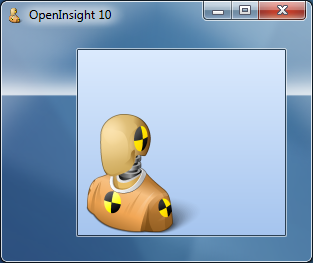
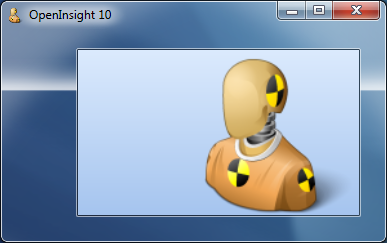
IMAGEALIGN 6 (Bottom-Left)

IMAGEALIGN 6 (Bottom-Left)

IMAGESTYLE property

This property specifies how the image is rendered onto the window’s client area.  The following property values are supported:

  • “0” Clip – the image is not resized and is simply rendered onto the client area according to the IMAGEALIGN property (Note that the IMAGEORIGIN property will override the image alignment).
  • “1” Stretch – the image is resized to cover the entire client area of the window.
  • “2” Tile – the image is tiled across the entire client area.
  • “3” Scale – the image is resized but it’s proportions are kept constant: e.g. if the image is taller than it is wide the image height will be resized to the height of the client area, and it’s width scaled to keep the same proportions.  It will also respect the IMAGEALIGN property.

Examples:

IMAGESTYLE 1 (Tiled)

IMAGESTYLE 1 (Tiled)

IMAGESTYLE 2 (Stretched)

IMAGESTYLE 2 (Stretched)

IMAGESTYLE 3 (Scaled), IMAGEALIGN 5 (Center-Right)

IMAGESTYLE 3 (Scaled), IMAGEALIGN 5 (Center-Right)

IMAGECOLORKEY property

This property specifies the color to use as the transparent color when rendering the image as described in this post.  It basically replaces the current (and undocumented) IMAGETRANSPARENT and TRANSPARENTCOLOR properties, both of which have been deprecated with this release.

This property should be a valid RGB color value or one of the following special values:

  • “-1” Use the color of the top left pixel as the color-key.
  • “-2” Use the color of the top-right pixel as the color-key.
  • “-3” Use the color of the bottom-left pixel as the color-key.
  • “-4” Use the color of the bottom-right pixel as the color-key.
  • “-5” Do not use any color-keying.

IMAGEFRAMECOUNT property

Some image formats such a GIF and TIFF files can contain more than one image, held in series of frames.  This read-only property returns the number of frames in the image file.  Note that this is not the same as the IMAGECOUNT property, which applies to a single frame only.

Example:

Animated GIF with 12 frames

Animated GIF with 12 frames

IMAGEFRAMENUMBER property

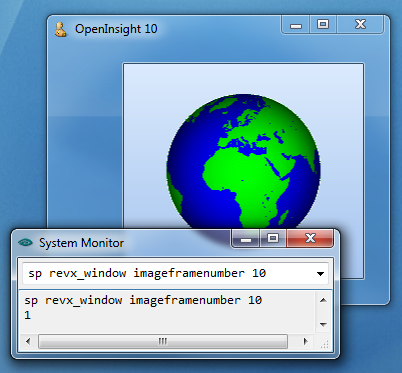
This property gets or sets the current display frame for the image and could be used with a TIMER event to display an animated GIF file for example.  Note that this property is not the same as the IMAGENUMBER property which applies to a single frame only.

Examples:

Animated GIF with IMAGEFRAMENUMBER of 2

Animated GIF with IMAGEFRAMENUMBER of 2

Animated GIF with IMAGEFRAMENUMBER of 10

Animated GIF with IMAGEFRAMENUMBER of 10

IMAGESIZE property

This read-only property returns a dynamic array containing the size of the image in pixels:

<1> Width
<2> Height

Note that for a multi-frame image format it returns the size of a single frame, not all the frames combined.

IMAGETRANSLUCENCY property

This property specifies the transparency of the entire image as it is rendered onto the window. It is based on simple percentage amount, “0″ being fully opaque and “100″ being fully transparent (and therefore not visible).

Example:

IMAGETRANSLUCENCY of 70 with IMAGEORIGIN of 90,60

IMAGETRANSLUCENCY of 70 with IMAGEORIGIN of 90,60

SETIMAGE method

This method supersedes the existing IMAGE property and allows a image to be set by passing the raw image data rather than by passing a file or resource name as per the BITMAP property.  The OpenInsight property interface is text-based and does not support passing binary data with embedded null characters, whereas the method interface does, hence the reason for this change.

Other image-related properties

The following current image-related properties remain the same:

  • BITMAP
  • IMAGECOUNT
  • IMAGENUMBER
  • IMAGEOFFSET
  • IMAGEORIGIN

Deprecated properties

The following properties have been deprecated or removed in OpenInsight 10:

  • IMAGE – this property has been superseded by the SETIMAGE method.  It is now a synonym for the BITMAP property.
  • IMAGECLIP – this property has been superseded by the IMAGESTYLE property.
  • IMAGETRANSPARENT – this property has been superseded by the IMAGECOLORKEY property.
  • TRANSPARENTCOLOR – this property has been superseded by the IMAGECOLORKEY property.

(Disclaimer: This article is based on preliminary information and may be subject to change in the final release version of OpenInsight 10).
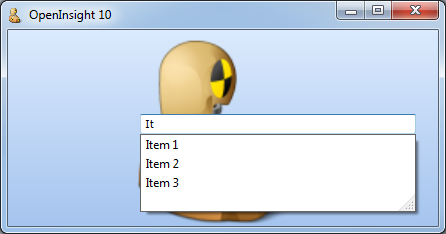
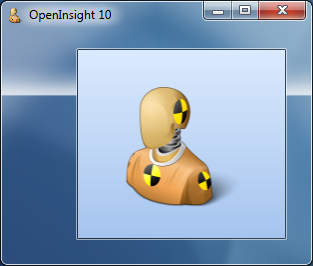
Image transparency – Color-keying and Alpha-blending

Earlier versions of OpenInsight have supported basic image transparency via a method called “color-keying”, where a specific color in the image is nominated as the transparent color (by default the color of the top-left pixel).  When the image is drawn to screen the pixels that match the transparent color are not rendered so the background pixels show through instead.  Whilst this can be effective in simple cases it is sub-optimal for images that have smooth curves and shadows as these tend to appear very pixelated: You can see this in the example from OpenInsight 9.3 below, where a bitmap with a white background and a slight shadow is rendered to a non-white background:

Orignal bitmap

Color-Keyed bitmap showing pixelated edges

Color-Keyed bitmap showing pixelated edges

A much better alternative is to use an image format that supports an “alpha channel” such as a PNG file*. Basically this means that each pixel in the image has an extra byte that describes it’s transparency – a value of 0 means that the pixel is totally transparent, while a value of 255 means that the pixel is totally opaque, Values in between are used to calculate how the image pixel is combined with the background pixel when drawn, so that it gives the appearance of being translucent, allowing the background pixel to show through to some degree.  This is a technique known as Alpha-blending.

With version 10 we’ve taken the opportunity to re-visit OpenInsight’s image handling so it respects the alpha channel properly – you can see this in the example below, where the same image is loaded from a PNG file rather than a standard BMP file:

Alpha-blended source bitmap

Alpha-blended PNG bitmap with smooth edges and shadow

Alpha-blended PNG bitmap with smooth edges and shadow

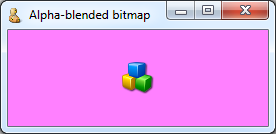
We have also take this one step further and provided the ability to specify a transparency setting for the entire image when it is rendered, so you can create an effect like a watermark:

Alpha-blended translucent image on a gradient background

Alpha-blended translucent image on a gradient background

Note that this effect also applies to color-keyed and non-transparent bitmaps too, which of course are still fully supported so you won’t need to change your existing applications unless you want to. In the next post we’ll take a look at some of the new image-specific properties that support this functionality.

* (PNG image files have always been supported in OpenInsight but the alpha-channel has never been respected, thereby limiting them to basic color-keying for transparency effects).

(Disclaimer: This article is based on preliminary information and may be subject to change in the final release version of OpenInsight 10).
Subject to change…

Those of you reading to the end of the posts in this blog may have noticed a small disclaimer we put at the bottom of each article explaining that things might change between now and the final release.  This post is just a small example of that in action as we’ve recently renamed a couple of properties in the interests of clarity and usability:

  • The WINDOW TRANSPARENCY property has been renamed to TRANSLUCENCY
  • The WINDOW APPUSERMODELID property has been renamed to TASKBARID (along with it’s switch in the RXI file)

More news as it happens …

(Disclaimer: This article is based on preliminary information and may be subject to change in the final release version of OpenInsight 10).

Image format support in OpenInsight 10

16-bit and 32-bit versions of OpenInsight have historically used a 3rd party library (ImageMan) for handling various image formats, mainly due to the lack of inbuilt support in Windows itself when the OpenInsight tool-set was first developed.

Unfortunately with the move to a 64-bit version of OpenInsight there is no 64-bit version of the ImageMan library available, but Windows itself now offers excellent image format support as part of the platform, so with version 10 we’ll be taking advantage of the WIC (Windows Imaging Component) libraries to provide support for the following popular formats:

      • BMP
      • GIF
      • ICO
      • JPG
      • PNG
      • TIFF

More information on the WIC can be found here.

(Disclaimer: This article is based on preliminary information and may be subject to change in the final release version of OpenInsight 10).

Taskbar Integration – The TASKBARID property

In a previous post on the RXI files we mentioned the taskBarID switch that could be applied when launching the Presentation Server to un-group instances of the same executable on the Windows Taskbar.  This same principle can also be applied to top-level application windows so they can have their own icon on the taskbar rather than being grouped together with other application windows owned by the same instance.

To support this feature OpenInsight 10 provides a new WINDOW property called TASKBARID, which should contains a unique value that differentiates the window from other windows running on the desktop.

For example, a fairly easy way to set a unique value would be to combine the window ID and handle like so:

taskBarID = @window : "." : get_Property( @window, "HANDLE" )
call set_Property( @window, "TASKBARID", taskBarID )

Here is an example of a window with a blank TASKBAR property – notice that it is grouped with the System Monitor window as they both belong to the same instance of OpenInsight:

TASKBARID not set

TASKBARID not set

Here is the same window with the TASKBARID set to “TEST” – the OpenInsight 10 window icon is now visible on the TaskBar:

TASKBARID set to “TEST”

TASKBARID set to “TEST”

Note that you can also give multiple windows the same TASKBARID if you wish to control how they are grouped together.

[Edit: 01 Feb 13 – property renamed to TASKBARID]

(Disclaimer: This article is based on preliminary information and may be subject to change in the final release version of OpenInsight 10).
Special FX – The SHOW and HIDE methods

These two new methods allow you to show or hide a form along with a simple fading or sliding animation.  Each method takes a single parameter which specifies the type of animation to apply:

Effect Value Description
-1 or null Use the default effect value as set in the Form Designer
0 No effect
1 Fade Effect (cannot be used with MDI Child forms)
2 Slide Down
3 Slide Up
4 Slide Right
5 Slide Left
6 Slide Down and Right
7 Slide Down and Left
8 Slide Up and Right
9 Slide Up and Left

E.g. For a “pop-up toast” style notification dialog you could use the following effects:

exec_Method( @window, "SHOW", 3 ); Slide open from bottom to top
exec_Method( @window, "HIDE", 2 ); Slide closed from top to bottom

[Edit: 24 Apr 13 – Call_Method renamed to Exec_Method]

(Disclaimer: This article is based on preliminary information and may be subject to change in the final release version of OpenInsight 10).