Password-style EditLines

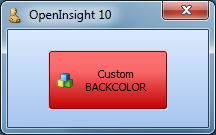
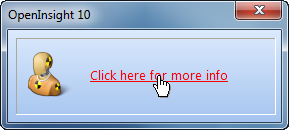
During the recent Antipodean roadshow a request was made for some new EditLine functionality typically found on mobile operating systems such as Android. Specifically this was to provide a way for a password-style edit control to allow each typed character to be shown briefly before being masked like so:

New Password Functionality

New Password Functionality

Thankfully this was a relatively simple request and we soon added two new properties to implement this:

  • PASSWORDSTYLE
  • PASSWORDPEEKTIME


PASSWORDSTYLE Property

This is a  boolean property that changes the EditLine into a password-entry style control when set to TRUE.  When set to FALSE the control acts as a normal EditLine. This property can be set at runtime to mask or unmask the entire password if desired.

PASSWORDPEEKTIME Property

This property contains the number of milliseconds to display an entered character before masking it.  When set to 0 the entered character is never displayed. This property also requires PASSWORDSTYLE to be set to TRUE, otherwise it has no effect.

(Disclaimer: This article is based on preliminary information and may be subject to change in the final release version of OpenInsight 10).

OLE Control Integration

One of the goals for version 10 is better OLE control (OCX) integration and support.  A major part of that objective is the ability to register OLE controls with the IDE and bind them to the database in a similar fashion to the standard controls such as Edit Lines, Edit Tables and so on. In this post we’ll be taking a brief look at how this new functionality is being implemented.

Registering OLE Controls

OpenInsight 10 supports a new repository type called “OLECONTROL”. This represents an OLE control “registration record” (stored in the new SYSREPOSOLECONTROLS table) which contains basic information, such as its CLSID and description, and the information needed for data binding, such as the name of the OLE property to use for the DEFPROP property.

The simple form below shows the information that can be held for an OLECONTROL entity (Note that this form isn’t final, right now it’s a “bare-bones” version that is being developed further to integrate with the new IDE, but it does allow full testing and validation).
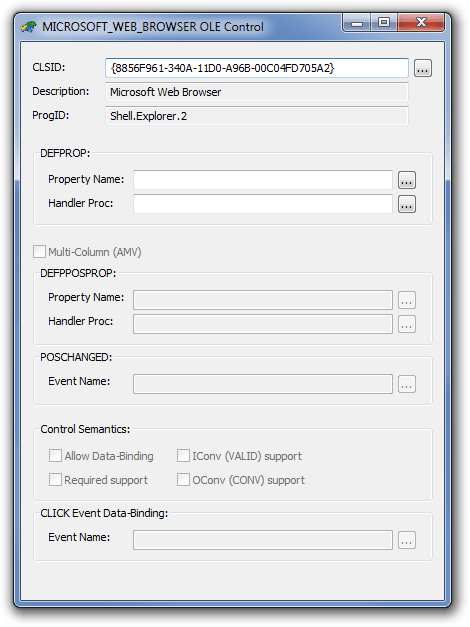
OLE Control Registration

OLE Control Registration

The CLSID

The first, and most critical item of data, is the Class ID (CLSID) of the OLE control, which is a 128-bit number (called a GUID, or Globally Unique IDentifier) that uniquely identifies it. When you install an OLE control onto a system, the CLSID is used as a key in the registry where various bits of information about the control are stored.

Older versions of OpenInsight have always required you to enter the CLSID manually when using OLE controls with the Form Designer, and this can be a tedious task if not provided with the control’s documentation, usually needing a good trawl through your Windows Registry or a special tool like Microsoft’s OLEView to find it. With version 10 we’ve included a new dialog that does the heavy lifting for you when you want a CLSID: It enumerates all the OLE controls that are installed on your system and presents them as a list for you to choose from, returning the CLSID when you click “OK”.
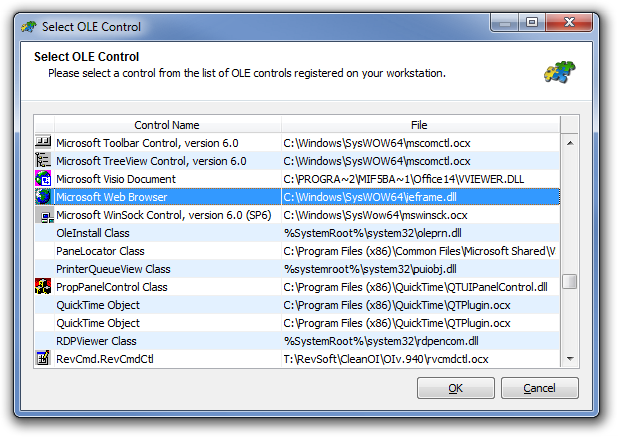
Select OLE Control

Select OLE Control

Once you have specified the CLSID you can save the record without any further input if you wish.  The control won’t be data-bound but it will be added to the tool palette in the Form Designer as a new item so it is readily available for subsequent development purposes.

Data-binding OLE controls

If you wish to support data-binding the next item to specify is the DEFPROP property, which is a “synthetic” property that maps onto a “real” property (such as TEXT, VALUE, ARRAY etc.) at run-time. All data-binding in OpenInsight is handled through the DEFPROP property and it is the sole mechanism by which the form IO layer accesses data in the user interface.

For an OLE control DEFPROP can be mapped in one of two ways:

  1. By specifying an actual OLE property of the control (such as “Text” for example), or,
  2. By specifying the name of a Basic+ handler function that the form IO layer calls to handle the request. This latter method can be useful when dealing with a complex control such as a grid, that might need to insert/delete rows and set cells individually if it doesn’t have something like an intrinsic OpenInsight-style ARRAY property.

If you do specify a Basic+ DEFPROP handler function it must conform to the following interface:

   defPropVal = myDefPropHandler( ctrlEntID, flags, newValue, index )

      ctrlEntID -> ID of the control to get the value for 
      flags     -> Denotes if this is a GET or SET/SETONLY request
      newValue  -> The new value if this is a SET/SETONLY operation
      index     -> Property index:
                       <1> Col
                       <2> Row

Note that the Option (“…”) buttons on the form present a popup of OLE properties and events, or matching Stored Procedures, as appropriate:
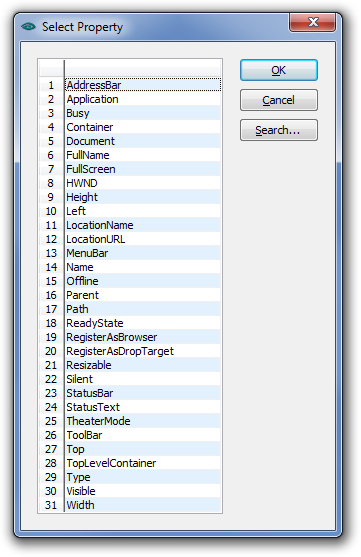
Select OLE Property

Selecting an OLE Property for the Web Browser control

Binding multi-column (AMV) controls

If your OLE control can support multiple data columns like the standard OpenInsight EditTable, there are two more items needed to allow the form IO layer to understand how to use your control:

  1. The new DEFPOSPROP property, and
  2. The name of an OLE event that maps to the equivalent of OpenInsight’s POSCHANGED event.

The DEFPOSPROP property is used to access the current column/row/cell position within the control, in a similar fashion to the standard SELPOS or CARETPOS properties.  It can be mapped in one of three ways:

  1. By specifying a single actual OLE property of the control (such as “SelPos” for example) that implements an @fm-delimited column and row index format (like CARETPOS)
  2. By specifying a comma delimited pair of properties representing the column and row positions respectively, e.g. “CurrCol,CurrRow”
  3. By specifying the name of a Basic+ handler function that the form IO layer calls to handle the request in a similar fashion to the DEFPROP handler.

A Basic+ DEFPOSPROP handler should have the following interface:

   defPosPropVal = myDefPosPropHandler( ctrlEntID, flags, newPos )

      ctrlEntID -> ID of the control to get the value for 
      flags     -> Denotes if this is a GET or SET/SETONLY request
      new       -> The new position if this is a SET/SETONLY operation
                       <1> Col
                       <2> Row

  defPosPropVal <- Returns the current position in the format:
                       <1> Col
                       <2> Row

The final item needed is the POSCHANGED event name so that the form IO layer can check when data has been entered into a cell for validation and update purposes.

Control Semantics

The next set of information is used by the Form Designer to indicate what extra features it needs to present when the OLE control is being edited:

  • Allow Data-Binding: Checking this box tells the Form Designer to allow TABLE and COLUMN properties to be entered.  This must be set if you wish to actually bind your control to the database at runtime.
  • Required Support: Checking this box tells the Form Designer to allow the REQUIRED property to be specified.
  • IConv Support: Checking this box tells the Form Designer to allow the VALID property to be specified.
  • Oconv Support: Checking this box tells the Form Designer to allow the CONV property to be specified.

CLICK Event Data-Binding

Some controls, such as Checkboxes, update their data when clicked rather when they lose focus or change cell position. In this case the form IO layer needs to know the name of the OLE event to track if the control exhibits this behavior and this should be entered here.

(Disclaimer: This article is based on preliminary information and may be subject to change in the final release version of OpenInsight 10).

The WRITEATRECORD property

The OpenInsight ATRECORD property is an easy way of updating data in your forms in a similar fashion to the way the “@Record” variable worked in Advanced Revelation, but it does suffers from one potential drawback: Any fields in the data record set via ATRECORD that are not bound to a control on the form are not updated when the form contents are saved.

Of course there is a reason for this: OpenInsight forms only update individual fields in a record when saving data rather than the entire record, and it is this capability that allows it to implement the “Ignore Self Locks” feature that means you can use more than one form to simultaneously edit data in the same record.

Still, not every scenario calls for this level of finesse, so Openinsight 10 introduces a new WINDOW property called WRITEATRECORD.  When set to TRUE$ all data set via the ATRECORD property is written to disk, just like “@Record” in Advanced Revelation.

(Disclaimer: This article is based on preliminary information and may be subject to change in the final release version of OpenInsight 10).

Property Indexes

One of the things you’ll see more of in OpenInsight 10 is the use of property Indexes when using the Get_Property and Set_Property functions.  In previous versions these have only been used with the EditTable CELLPOS property, but now you’ll find them in other places too, like the Tab Control.

For example, if you simply wish to access a single tab you can use an index with the TEXT property like so:

tabIdx = 3
tabText = get_Property( myTab, "TEXT", tabIdx )
call set_Property_Only( myTab, "TEXT", "New Text", tabIdx )

Of course, if you don’t specify an index you’ll be working with a dynamic array containing all the tab texts just like before.

Depending on the property in question it may support one or two dimensions. If the latter then the property index argument for Get_Property and Set_Property is a simple @fm-delimited array like so:

<1> Column index
<2> Row Index

The use of 2D properties has been considerably expanded for the EditTable to reduce the need to call methods like TEXT_BY_POS, or the need to set ACCESSPOS before using the BITMAP property and so on, but we’ll cover those in more detail in a future post.

(Disclaimer: This article is based on preliminary information and may be subject to change in the final release version of OpenInsight 10).
Promoted Events and the Repository

One of the most powerful programming features of OpenInsight is the “Promoted Event” model, allowing you to write “global” event handing code that can be triggered for a variety of situations, such as for all objects of a certain type, or for all objects in an application, and so on.  This helps to centralize your code-base and restrict unnecessary duplication, thereby making development faster and more robust.

However, promoted events have also been one of the most opaque parts of the system and  their use is somewhat awkward and error-prone because they rely on the dark art of naming conventions and manual record copying between tables.  In an effort to rectify this we’ve integrated them into the OpenInsight Repository so they can be tracked properly and you can see at a glance exactly what is in your system.  

Promoted events fall into one of 5 generic categories:

 Category                         Example SYSREPOSEVENTS key
 ========                         ==========================
 1) EVENT/CLASS/TYPE specific  -> SYSPROG*ACTIVATED.WINDOW.OIWIN*
 2) EVENT/TYPE specific        -> SYSPROG*ACTIVATED..OIWIN*
 3) TYPE specific              -> SYSPROG*..OIWIN*
 4) EVENT/CLASS specific       -> SYSPROG*ACTIVATED.WINDOW*
 5) EVENT specific             -> SYSPROG*ACTIVATED*

So to enable their integration we’ve added three new entity types:

  • PROMOTEDEVENT (source code)
  • PROMOTEDEVENTDBG (debugger symbol table)
  • PROMOTEDEVENTEXE (object code)

Each of these types has a Repository key structure that derives from the actual promoted event key itself like so:

 SYSREPOSEVENTS key                 Repository key 
 ==================                 ==============
 SYSPROG*ACTIVATED.WINDOW.OIWIN* -> SYSPROG*PROMOTEDEVENT*ACTIVATED*WINDOW.OIWIN
 SYSPROG*ACTIVATED..OIWIN*       -> SYSPROG*PROMOTEDEVENT*ACTIVATED*_.OIWIN
 SYSPROG*..OIWIN*                -> SYSPROG*PROMOTEDEVENT*_*.OIWIN
 SYSPROG*ACTIVATED.WINDOW*       -> SYSPROG*PROMOTEDEVENT*ACTIVATED*WINDOW
 SYSPROG*ACTIVATED*              -> SYSPROG*PROMOTEDEVENT*ACTIVATED*_

Some of you may look twice at the use of the “_” character for the CLASSID and ENTID Repository key parts:  This is actually used as a placeholder to denote a null part in the promoted event key itself – their use is necessary because the Repository reacts poorly to a null CLASSID or ENTID.

We’ve also added a new stored procedure called SYNCH_REPOS_PROMOTED_EVENTS which can scan your SYSREPOSEVENTS and SYSREPOSEVENTEXES tables to create any missing  entities so it’s easy to bring your existing promoted events into the Repository,

Of course integration with the Repository isn’t the end of the story – now that promoted events are recognized as first-class citizens we need to provide the tools in the IDE to create and maintain them… but that’s a story for another time…

(Disclaimer: This article is based on preliminary information and may be subject to change in the final release version of OpenInsight 10).

The FILESYSTEM WATCHDIR method

We’ve already taken a look at the new FILESYSTEM object in a previous post, but this time we’re going to focus on a new method we’ve added called WATCHDIR.

This method allows you to monitor the contents of one or more directories on the system and be notified of any changes occurring within them.  It’s API is quite simple and takes up-to three arguments:

  1. The name of the directory to watch (required).
  2. A optional boolean flag denoting if you wish to include sub-directories. (defaults to FALSE$).
  3. An optional set of bit-flags detailing the kind of changes you are interested in.  By default WATCHDIR notifies you of file creation, changes to the name, and changes to the “Last-Write” time.

Example:

$insert msWin_FileNotify_Equates

// Only watch for files being created in the specified dir ...
watchFlags      = FILE_NOTIFY_CHANGE_CREATION$
bIncludeSubDirs = FALSE$
call exec_Method( "FILESYSTEM", "WATCHDIR", "c:\temp\incoming", |
                  bIncludeSubDirs, watchFlags )

When a change occurs the FILESYSTEM object raises a CHANGED event to notify you of the fact,  As with any other OI window or control you can write your own FILESYSTEM CHANGED event handler to respond to this – note that this event is per application, not per window.

Like the standard CHANGED event the relevant change information is passed in the “NewData” argument – in this case “NewData” contains a dynamic array with two fields:

<1> The name and path of the file being changed
<2> A code specifying the type of change

Example FILESYSTEM CHANGED event:

$insert msWin_FileNotify_Equates

changeFile = newData<1>
changeCode = newData<2>

info = ""

begin case
   case ( changeCode = FILE_ACTION_ADDED$ )
      info = "Added"
   case ( changeCode = FILE_ACTION_REMOVED$ )
      info = "Deleted"
   case ( changeCode = FILE_ACTION_MODIFIED$ )
      info = "Modified"
   case ( changeCode = FILE_ACTION_RENAMED_OLD_NAME$ )
      info = "Renamed From"
   case ( changeCode = FILE_ACTION_RENAMED_NEW_NAME$ )
      info = "Renamed To"
end case

call send_Info( info : " " : changeFile )

Technical note: The WATCHDIR method is based on the underlying ReadDirectoryChangesW Windows API function, details of which can be found here.

(Disclaimer: This article is based on preliminary information and may be subject to change in the final release version of OpenInsight 10).

The IDLEPROC Queue

One of the new features added to the SYSTEM object is the “IDLEPROC queue”.  This is an enhancement to the existing IDLEPROC property as it allows you to queue multiple requests via the new SYSTEM ADDIDLEPROC method like so:

* // Run a process in the future 
procID   = "RUN_SOME_PROCESS"
procArg  = "42"
procTime = "12:00:00"  ; * // midday
procDate = oconv( date() + 1, "D4/" ) ; * // tommorrow

call exec_Method( "SYSTEM", "ADDIDLEPROC", procID, procArg, procTime, procDate )

* // Run a process ASAP...
procID = "RUN_SOME_OTHER_PROCESS"
procArg = "X43"
procTime = "" ; * // ASAP
procDate = "" ; * // ASAP

call exec_Method( "SYSTEM", "ADDIDLEPROC", procID, procArg, procTime, procDate )

The contents of the queue can be examined via the new SYSTEM IDLEPROCQUEUE property:

ipQ    = get_Property( "SYSTEM", "IDLEPROCQUEUE" )
xCount = fieldCount ( ipQ, @fm ) 
for x = 1 to xCount
   ip       = ipQ<x>
   procID   = ipQ<0,1>
   procArg  = ipQ<0,2>
   procTime = ipQ<0,3>
   procDate = ipQ<0,4>
next

The normal IDLEPROC property works just as it always has done with the following caveats:

  • Setting the IDLEPROC property will replace the entire contents of the queue (so you can use this to clear the queue if you wish).
  • Getting the IDLEPROC property will only return the first item in the queue if there are multiple items.

(Disclaimer: This article is based on preliminary information and may be subject to change in the final release version of OpenInsight 10).

Split-Button controls

Continuing with the recent focus on Button controls, this time we’re going to take a look at another new Button feature: Split-Buttons.

Split-Button

Split-Button using Aero styling

This button style was introduced with Windows Vista (*) and basically divides the button into two parts: The main part behaves like a normal push-button and fires a CLICK event when pressed, whilst the other part (normally drawn with a down arrow) fires a DROPDOWN event instead of a CLICK (if a context menu is linked to the button then this is displayed instead).

Split-Button support in OpenInsight 10 is exposed via the following properties:

  • SPLITBUTTON
  • SPLITWIDTH
  • SPLITSEPARATOR

SPLITBUTTON property

To enable Split-Button functionality the SPLITBUTTON property can be set to one of the following values:

  • “R” – creates a Split-Button with the main part to the left and the drop-down arrow part on the right.
  • “L” – creates a Split-Button with the main part to the right and the drop-down arrow part on the left.
Left-aligned Split-Button

Left-aligned Split-Button using XP-styling

Setting the SPLITBUTTON property to NULL (“”) removes the Split-Button styling from the control.

SPLITWIDTH property

This property specifies the size in pixels of the arrow part of the control.

SPLITSEPARATOR property

The functionality of a Split-Button can be changed by the SPLITSEPARATOR property.  By default the property is TRUE (“1”), but when set to FALSE (“0”) the line between the two parts of the button is removed and the entire button then behaves as a “drop-down button” – i.e. clicking the button displays a context menu or fires a DROPDOWN event.

Split-Button without separator

Aero-style Split-Button without separator

The Split-Glyph API

For those of you who really can’t help customizing as much as possible the Split-Button also supports an API to allow you to change the default down arrow in the drop-down part of the control. This is the “Split-Glyph API” and mirrors most of the normal Button control “Glyph API” described previously. The only difference is the name of the properties – they are all prefixed with “SPLIT”, i.e.

  • SPLITGLYPH
  • SPLITGLYPHCOLORKEY
  • SPLITGLYPHCOUNT
  • SPLITGLYPHFRAMECOUNT
  • SPLITGLYPHFRAMENUMBER
  • SPLITGLYPHOFFSET
  • SPLITGLYPHORIGIN
  • SPLITGLYPHSIZE
  • SPLITGLYPHTRANSLUCENCY
Split-Button with split-glyph

Split-Button with split-glyph using XP styling

(*) Although Microsoft only introduced Split-Buttons into Windows with the release of Vista, (and then only with visual styles enabled) it should be noted that the OpenInsight Split-Button is supported on XP as well, even running under the Windows Classic theme.

Classic mode Split-Button

Classic mode Split-Button

(Disclaimer: This article is based on preliminary information and may be subject to change in the final release version of OpenInsight 10).

Button controls

Perhaps one of the controls most in need of a face-lift in OpenInsight is the Button (a.k.a PUSHBUTTON) control, and in this post we’ll take a look at some of the new features we’ve added to it for version 10.

Image API

Buttons in OpenInsight have always supported background images and version 10 is no different.  However we’ve extended the number of image states from 6 to 10 to give you a few more options if you want to use them:

  1. Up
  2. Down
  3. Disabled
  4. <not used>
  5. Up with focus
  6. Down with Focus
  7. Hot
  8. Hot with focus
  9. Default
  10. Default with focus

Of course you don’t have to supply all of these images – the system will attempt to pick the closest match based on the IMAGECOUNT supplied.  Access to the image properties is exposed via the normal Image API with the exception of the IMAGENUMBER property which is managed automatically depending on the button state.

Glyph API

One of the biggest drawbacks with using buttons in previous versions of OpenInsight is that images have only ever been applied to the background as a whole.  In order to create a button with an icon (or glyph, as we’ll refer to it henceforth) it has always been necessary to provide an image file with the entire button background drawn on it as well as the required glyph and text.  This makes it very difficult to provide a solution that looks good across different color schemes and visual styles, and it also makes any sort of runtime customization problematic too.

For version 10 a new API has been added for buttons called the “Glyph API”. This allows you to specify an image for the button that is drawn on top of the normal background like so:

Classic-style button with glyph

Classic-style button with glyph

XP-style button with glyph

XP-style button with glyph

Aero-style button with glyph

Aero-style button with glyph

Win8-style button with glyph

Windows 8-style button with glyph

It is exposed via the following properties:

  • GLYPH (similar to the BITMAP or IMAGE property)
  • GLYPHALIGN
  • GLYPHCOLORKEY
  • GLYPHCOUNT
  • GLYPHFRAMECOUNT
  • GLYPHFRAMENUMBER
  • GLYPHOFFSET
  • GLYPHORIGIN
  • GLYPHLAYOUT
  • GLYPHSPACING
  • GLYPHSIZE
  • GLYPHTRANSLUCENCY

These properties are very similar to their counterparts in the normal Image API with the exception of the following Button-glyph specific ones:

GLYPHLAYOUT property

This property specifies how the glyph is laid out in relation to the text, and can be one of the following values:

  • “0” – Glyph to the left, text to the right
  • “1” – Glyph to the top, text to the bottom
  • “2” – Glyph to the right, text to the left
  • “3” – Glyph to the bottom, text to the top.
Buttons showing  glyph layouts

Aero-style buttons showing glyph layouts

GLYPHSPACING property

This property is simply the number of pixels between the glyph and the text.

Where’s the GLYPHNUMBER property?

Just as the Button Image API has no IMAGENUMBER property there is no corresponding GLYPHNUMBER property either – this is because you can provide more than one image for a glyph and the system will automatically select one for you based on the button state (just like with background images).  These states are:

  1. Button up
  2. Button down
  3. Button disabled
  4. Button hot
  5. Button default

Note that if you don’t supply a disabled Glyph image and you disable the button the system will draw a grayed version of the glyph for you:

Button with disabled glyph

Aero-style buttons with system-drawn disabled glyph

Flat buttons

Flat “toolbar” style buttons are supported by the boolean FLAT property.  I.e. the actual background is not painted until the mouse is moved over the button.

Flat button

Aero-style flat button

Flat button with translucency

Aero-style flat buttons with 50% translucency

Custom colors

The button BACKCOLOR property fully supports custom colors and generates a set of matching 3D highlight and shadow colors to use when rendering.

Button with red BACKCOLOR

XP-style button with red BACKCOLOR

The FORECOLOR property also makes a welcome return and is now respected regardless of the visual style in use.

Button with red FORECOLOR

Aero-style button with red FORECOLOR

Extended mouse support

Like the updated Label control the Button now supports the following new properties when the button is in the “hot” state (i.e. the mouse is moving over it):

  • HOTFONT
  • HOTFORECOLOR
  • HOTBACKCOLOR

It also supports the new MOUSEOVER event so you can easily track mouse movements without having to resort to using WINMSG events.

Text Alignment and position

TEXTORIGIN property is provided that allows you to specify the exact XY position that you wish the text to be drawn at in a similar manner to the GLYPHORIGIN property.  Horizontal text alignment is also supported by the TEXTALIGN property.

(Disclaimer: This article is based on preliminary information and may be subject to change in the final release version of OpenInsight 10).

Hyperlink controls

Following on from the previous post on Label controls another new item we’ve added to OpenInsight is the Hyperlink control, which is essentially a specialized Label control that allows you to implement clickable links on your forms.

Hyperlink Control

Hyperlink Control

Barring HTML rendering it supports all the other properties of a Label control as well as adding a few others:

  • AUTOUNDERLINE
  • LINK
  • LINKCURSOR
  • LINKRESULT
  • SHOWVISITED
  • VISITEDFORECOLOR

AUTOUNDERLINE property

If this property is TRUE then the control ensures the text is underlined when the mouse hovers over it.

LINK property

This property contains the command string to execute when the link is (single) clicked. it can be any valid Windows command string (internally it is passed to the Windows ShellExecute function).

Note that that the CLICK and DBLCLK events are still fired as normal even if the LINK property is blank, so you still have full control over the hyperlink target.

LINKCURSOR property

This specifies the cursor to use when the mouse is over the link text.  It defaults to the standard “hand” cursor but can be set in the same way as the normal OpenInsight CURSOR property.

LINKRESULT property

When the command string in the LINK property is executed the result of the operation (as returned from the ShellExecute function) is placed in the LINKRESULT property for further examination if you wish (ShellExecute normally returns a value < 32 if there is a problem executing a command).

SHOWVISITED property

If this property is TRUE the link will be displayed using the VISITEDFORECOLOR property when it has been clicked at least once.

VISITEDFORECOLOR property

This property specifies the color to use for visited links (i.e. those that have been clicked and have a SHOWVISITED property of TRUE).

The GO method

The Hyperlink control also supports a new GO method that executes the contents of the LINK property as though it had been clicked.  The return value from this method is the same as the value returned in the LINKRESULT property.

(Disclaimer: This article is based on preliminary information and may be subject to change in the final release version of OpenInsight 10).