Category Archives: Presentation Server

Contains posts about the OpenInsight Presentation Server, which is the module responsible for managing GUI windows and controls on the Windows Desktop.

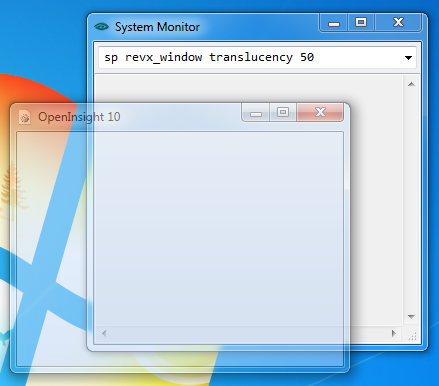
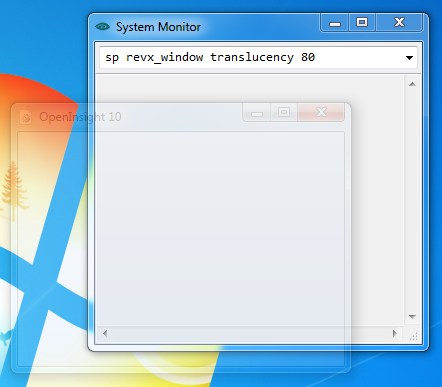
Special FX – The TRANSLUCENCY property

This new property applies to all top-level windows and dialog boxes (but not MDI child windows) and allows you to set the translucency of a form based on a simple percentage amount, “0” being fully opaque and “100” being fully transparent.

Form with TRANSLUCENCY of 20

Form with TRANSLUCENCY of 20

Form with a TRANSLUCENCY of 50

Form with a TRANSLUCENCY of 50

FORM with a TRANSLUCENCY of 80

FORM with a TRANSLUCENCY of 80

Check out the excellent PAINT.NET application for a good example of using this effect where supporting modeless dialog boxes are rendered translucent when not active.

[Edit: 01 Feb 13 – property renamed to TRANSLUCENCY from TRANSPARENCY]

(Disclaimer: This article is based on preliminary information and may be subject to change in the final release version of OpenInsight 10).

Special FX – Aero Glass

One of the new capabilities added to OpenInsight 10 forms is Aero Glass support, a feature that Microsoft introduced with Windows Vista and unfortunately removed in Windows 8 (in the interests of disclosure your author is not a great fan of the “improvements” to the desktop in Windows 8). Still, Windows 7 remains extremely popular and will be around for many years to come so it makes sense to provide an Aero Glass interface for developers who wish to use it.

Aero Glass is exposed via the following properties:

  • GLASSMARGINS
  • GLASSFRAME
  • GLASSDRAG

The GLASSMARGINS property

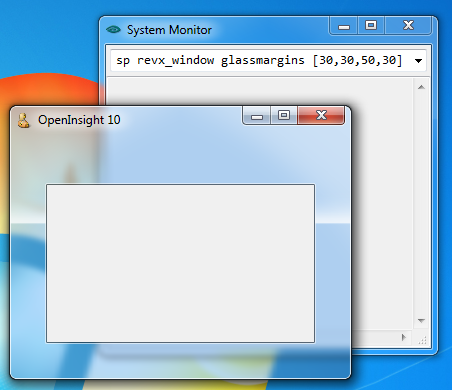
This property is a simple @fm-delimited dynamic array of margin values that specify the areas on the form that should be rendered using the glass effect.  Basically everything between the edge of a form and it’s appropriate margin value is rendered as glass.

<1> Left Margin
<2> Right Margin
<3> Top Margin
<4> Bottom Margin

RevX_Aero_Glass

Note that setting the margins to “-1” forces the entire client area of the form to be rendered as glass instead.

RevX_Aero_Glass_Sheet

The GLASSFRAME property

This is a boolean property (1/0) that enables or disables the Aero Glass effect for a form.  The GLASSMARGINS property must have been set before this property can be used to enable glass rendering.

The GLASSDRAG property

This is a boolean property (1/0) that specifies if the glass areas of a form can be used for dragging (normally only the form caption area can be used for this).

What happens when Aero Glass is not available?

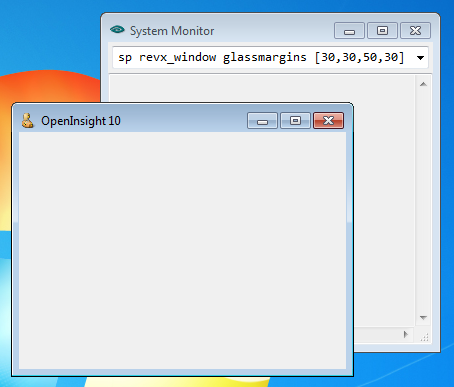
Of course it’s entirely possible that your application may have to run in an environment where Aero Glass is not available, such as running under the Aero Basic theme or on Windows XP.  In these circumstances the OS would “give up” and your form would be rendered with a normal client area like so:

RevX_Aero_No_Glass

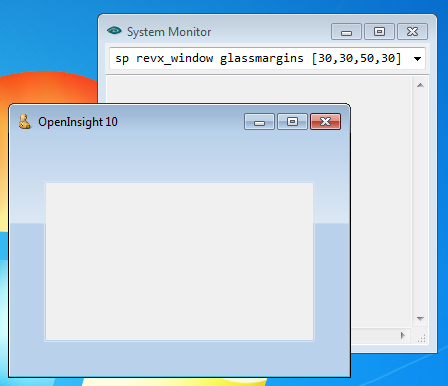
As you can see there’s no hint of the glass margins, so this will probably make your glass-based UI layout unsatisfactory.  In this case we’ve gone one step further and implemented a “Fake Glass” effect (much like Windows Explorer does under Aero Basic):

RevX_Aero_Fake_Glass

Fake Glass under Aero Basic

Fake Glass under Windows XP

Fake Glass under Windows XP

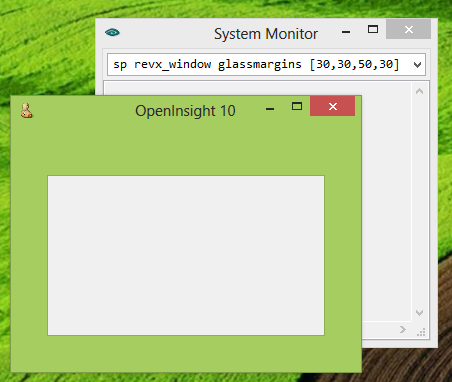
Of course, as Microsoft removed Aero Glass in Windows 8 they actually supply their own replacement, which simply paints the solid frame colors into the “glass” margins like so:

Win8_Glass

Fake Glass under Windows 8

(Disclaimer: This article is based on preliminary information and may be subject to change in the final release version of OpenInsight 10).

OpenInsight and Direct2D

As you may have noticed in a previous post on RXI files OpenInsight 10 provides the option to use Direct2D rendering when painting windows and controls on the screen.  If you’re not familiar with Direct2D it’s a new graphics engine Microsoft introduced with Windows 7 that aims to replace the traditional GDI graphics interface that has been a part of Windows since time began.  Essentially it’s a hardware-accelerated API that takes advantage of modern GPUs to provide high-performance rendering of 2D geometry, bitmaps and text.

(The official MSDN Direct2D documentation can be found here).

By default OpenInsight will use Direct2D if it is available on the platform (usually Windows 7, Windows 8 and Vista SP2) unless you override this via the aforementioned /2D switch or the UseD2D option to turn it off.  You can also disable it at runtime by using the SYSTEM object’s D2D property, which takes a simple boolean value of 1 or 0.

Of course you’re probably asking why you would want to disable this?  Well, to be honest you probably don’t, but it’s a sad fact that not all graphics cards are created equal (or at least their drivers aren’t) and it’s nice to have the option to drop back to standard GDI rendering in case you ever run across a problem.  We’ve also found it useful during our own development cycle here to see how the system behaves when Direct2D is not available, such as when running on an XP platform (of course we do actually test on XP itself, but switching platforms mid-development slows the entire process down, so initial testing of GDI rendering is done on Windows 7).

(Disclaimer: This article is based on preliminary information and may be subject to change in the final release version of OpenInsight 10).

The System Monitor

One of the most critical components of the Presentation Server is the System Monitor – as well as providing a simple command line interface to your forms and Basic+ Stored procedures, it is also responsible for a lot of hidden message processing and routing, such as providing the underlying framework that implements the IDLEPROC property and the POST_EVENT function.  It’s always there, even when you think you’ve closed it.

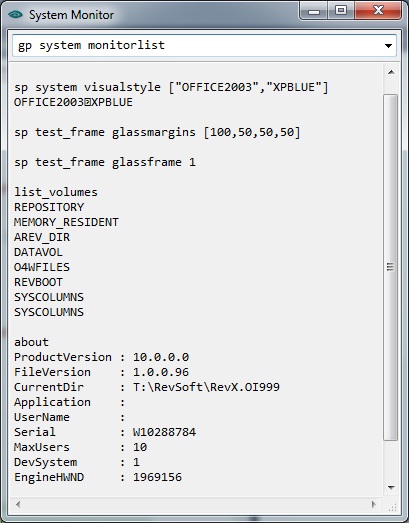
Needless to say it’s also the first part of the Presentation Server that gets written, and while the existing System Monitor is quite basic (it hasn’t been changed for many years) we’ve taken the opportunity with OI v10 to make it a bit more powerful and user-friendly.

Here’s a brief overview of the changes we’ve made:

  • It remembers it’s position and size between sessions.
  • It remembers a list of the last 100 executed commands between sessions.
  • Commands are no longer executed when scrolling through the dropdown – they are executed when the Enter key is pressed.
  • The font is set to “Consolas” with a fall-back to “Courier New”, which is hopefully easier on the eyes than the ugly “System Font” and allows more information to be seen.
  • The results editbox is read-only and results are only appended to existing text.
  • The command line supports the TCL-style “.number” syntax to execute a previously executed command (e.g. “.1”, “.2” etc).
  • Entering “RUN” before the name of a stored procedure is optional.
  • Any command entered that is not recognized is assumed to be the name of a stored procedure and is executed as such.
  • The command line parser has been improved – quotes and commas used to define arguments are now optional (like TCL).
  • The command line supports “AutoComplete” functionality.

We’ve also added the following commands:

  • ABOUT – Displays version information.
  • CFG – Displays the information parsed from the RXI file loaded at startup.
  • CLL – Clears the drop down list of previous commands.
  • CLS – Clears the results editbox.
  • EM – Shorthand for the “Exec_Method” stored procedure.
  • CMD – Opens the Windows command prompt window.
  • GC – Executes a Basic+ GarbageCollect operation.
  • GP – Shorthand for the “Get_Property” stored procedure.
  • LIST – Executes the command as an RLIST “LIST” statement.
  • LOGTO – Closes the current OpenInsight application and opens another one.
  • QUIT – Shuts down the Presentation Server
  • OFF – Same as QUIT (for TCL fans)
  • SHL – Executes an OS file/document via the Windows ShellExecute() function.
  • SP – Shorthand for the “Set_Property” stored procedure.

Be sure to let us know if there’s any features you’d like to see added to the System Monitor, but be advised that requests for full TCL compatibility will be ignored!

OI10 System Monitor

[Edit: 14 Jan 13 – Added CLL command and AutoComplete note]

[Edit: 24 Apr 13 – Call_Method renamed to Exec_Method]

(Disclaimer: This article is based on preliminary information and may be subject to change in the final release version of OpenInsight 10).

The Reflection API

From a tool-developers point of view one of the weaker areas in the Presentation Server has always been the lack of a “reflection API”, i.e. a way to discover what properties, methods and events an object actually supports at runtime.  This in turn has led to creating manual lists and records of object attributes, bringing with it with the inherent difficulty of keeping this information up-to-date as new features are added.

Primarily designed with the new PS-based Form Designer in mind, this shortcoming has been addressed in version 10 with the addition of the following new methods to the SYSTEM object:

  • REFLECTPROPERTIES
  • REFLECTMETHODS
  • REFLECTEVENTS

Each of these methods takes a single argument which is the type of object to query:

e.g.

buttonProperties = exec_Method( "SYSTEM", "REFLECTPROPERTIES", "PUSHBUTTON" )
buttonMethods    = exec_Method( "SYSTEM", "REFLECTMETHODS", "PUSHBUTTON")
buttonEvents     = exec_Method( "SYSTEM", "REFLECTEVENTS", "PUSHBUTTON" )

Each method in turn returns a dynamic array of information describing the requested attribute type:

  • REFLECTPROPERTIES returns the name of each property and the type of the data it represents.  It also identifies the context that the property is valid for (Devtime/Runtime/Get/Set).
  • REFLECTMETHODS returns the name of each method, along with a list of arguments the method accepts and the type of data each argument should contain.
  • REFLECTEVENTS returns the name of each event the object type can raise along with the names and data types of arguments passed to an event handler.

Note that when these methods return the type of data for a property or argument there are some cases where only a broad hint is given – Basic+ is an untyped language so it is not really feasible to accurately describe some types using a simple set of flags – e.g. in the case where an argument is a complex dynamic array containing a variety of other core data types such a strings and numbers.

Whilst aimed mainly at developers who write development tools for OpenInsight, this API may still be of interest for those of you who like to write your own diagnostic and debugging tools – when a new property, method or event is added to the Presentation Server it is clearly exposed thereby reducing the likelihood of it remaining hidden and undocumented.

[Edit: 09 Jun 22 – Corrected method names (removed underscores)]

[Edit: 24 Apr 13 – Call_Method renamed to Exec_Method]

(Disclaimer: This article is based on preliminary information and may be subject to change in the final release version of OpenInsight 10).

The RXI Files – Part II

In the previous post where we introduced the new RXI files we mentioned some new command line switches added to OpenInsight 10. In this post we’ll take a look at them and describe what they do.

/TB (taskBarID)

Under Windows 7 and 8 multiple instances of an executable launched from the same directory are grouped under one icon on the taskbar, making navigating between them quite tedious. To allow an executable to override this behavior Microsoft introduced a new application property called the “Application User Model ID” – a simple string that can be applied to an executable instance to differentiate it from other sibling instances, thereby allowing them to be un-grouped.

Windows assigns a default value to this property at runtime based on the executable name and the starting directory.  The OpenInsight /TB switch (or taskBarID element in an RXI file) allows you to set your own unique value for this property so that your application can be differentiated on the Windows taskbar (A read-only property called TASKBARID is exposed by the SYSTEM object at runtime to provide access to this value).

The Application User Model ID must be set before any forms are created by an executable which is why it can only be set via the RXI file or the command line switch.

If you wish to find out more details about the Application User Model ID please see the MSDN documentation about the SetCurrentProcessExplicitAppUserModelID function.

/SI (singleInstance)

This is a boolean (1/0) flag that ensures there is only one instance of the specified OI application executing on a workstation.  Any other OI applications from the same executable are unaffected.

/EL (elevate)

This is a boolean flag (1/0) that specifies if the application requires Administrator privileges when it is launched. If this switch is set to “1” and the Windows user is not an administrator they will be asked to provide Administrator level credentials before they can continue (via the standard Windows UAC prompt).

/MD (minDisplaySecs)

When displaying a banner image file at startup this switch specifies the minimum number of seconds to display the banner for.

/EP (enginePath)

This switch specifies an alternative OpenEngine path (normally the Presentation Server expects to load OpenEngine from the same directory where it is located).

/2D (useD2D)

This is a boolean flag (1/0) that specifies if the system should use Direct2D technology for rendering when available.  By default OpenInsight will attempt to use Direct2D where it can (Windows Vista SP2, Windows 7 and later), but it can be forced to use GDI rendering instead if this flag is set to “0”.

/DP (useDPIScaling)

This is a boolean flag (1/0) that specifies if the application should automatically scale coordinates when used on a high-DPI system.

[Edit: 01 Feb 13 – AM switch renamed to TB and taskBarID]

[Edit: 08 Jan 13 – Added DPI Scaling modifications]

(Disclaimer: This article is based on preliminary information and may be subject to change in the final release version of OpenInsight 10).

The RXI Files

As you probably know OpenInsight has plenty of command line switches and naturally for version 10 we’ve managed to add some more.  Here’s a list so far of the old and new ones (We’ll take a look at the new ones in a later post):

Switch Description
TB Taskbar ID
AP Application ID
UN Username
PW Password
SN ServerName
QN QueueName
AE AutoExec
CA Caption
DV DevMode
SM Show Monitor
NS No Spy
HI Hide PS
HE Hide Engine
BN Show Banner
SI Single Instance
EL Elevate
MD Minimum Banner Display
EP Engine Path
2D Use Direct 2D rendering
DP Use DPI scaling

Of course remembering to add all these to a shortcut can be tedious and error prone, so a new feature of OI 10 is the RXI (Revelation Xml Ini) file. This is basically a configuration file that stores the equivalent of these switches for a specific application and is parsed when the Presentation Server is first booted.

The contents of an RXI file are simple XML which looks like this:

<revPS appID="SYSPROG">
 <taskBarID>RevX.SYSPROG</taskBarID>
 <serverName>\\.\REVXPS_DEBUG</serverName>
 <queueName></queueName>
 <autoExec>REV_IDE</autoExec>
 <bannerFile>revx.png</bannerFile>
 <caption>Revelation X Dev System</caption>
 <showBanner>1</showBanner>
 <showMonitor>1</showMonitor>
 <noSpy>1</noSpy>
 <hidePS>0</hidePS>
 <hideEngine>0</hideEngine>
 <singleInstance>1</singleInstance>
 <elevate>0</elevate>
 <minDisplaySecs>0</minDisplaySecs>
 <useD2D>1</useD2D>
 <enginePath>C:\RevSoft\RevX.Dev</enginePath>
 <useDPIScaling>1</useDPIScaling>
</revPS>

An RXI file can be created for each of your OI applications using the Application ID as the file name with an extension of “.rxi”, e.g.

  • sysprog.rxi
  • examples.rxi
  • zzxadm.rxi

To use the RXI file specify the appropriate Application ID with the “/AP” command line switch when you start OpenInsight.  It is important to note that any of the settings contained within an RXI file are overridden by it’s corresponding command line switch if the switch is present.

Another point to bear in mind is that just as with command line switches the information contained within an RXI file is only used when the Presentation Server is first booted.  For example if you boot into SYSPROG and then change the application to EXAMPLES the “examples.rxi” file will not be processed.  This is because the information in the RXI file can only be processed and applied at boot-time.

[Edit: 01 Feb 13 – AM switch renamed to TB and taskBarID]

[Edit: 08 Jan 13 – Added DPI Scaling modifications]

(Disclaimer: This article is based on preliminary information and may be subject to change in the final release version of OpenInsight 10).

The new STYLE_N property

If you’ve ever had to work with the STYLE or STYLE_EX properties in OpenInsight you’ve probably had to write some gnarly code like this to get around the strange way it returns a string containing a C-style hex representation such as “0x8234ABDB”:

style = iconv( get_Property( object, "STYLE" )[3,8], "MX" )

We’ll probably never know the reason the original authors of OpenInsight decided to implement the property like this, but with version 10 we’ve provided a pair of new properties called “STYLE_N” and “STYLE_EX_N” that return the numeric (decimal) representation of a control’s style directly thereby saving the need for the extra parsing.

The LOG_EVENT method

In an earlier post we took a very brief look at some of the new properties of the SYSTEM object, and this time we thought we’d take a closer look at one of it’s new methods called LOG_EVENT.

Simply put the LOG_EVENT method allows you to write a message to the Windows Event Log without the need for you to prototype and use any Windows API functions yourself. It’s very easy to use and takes three arguments:

1) Type Info: This is a dynamic array comprised of the following fields:

   <1> Message Type (Required) : "ERROR", "WARNING" or "INFO".
   <2> Event ID     (Optional) : Integer denoting the event. Defaults to 1.
   <3> Category ID  (Optional) : Integer identifying the category. Defaults to 0.

2) Source Info: This is a dynamic array comprised of the following fields:

   <1> Event Source (Required) : Name of the Event Source (See below).
   <2> Server Name (Optional)  : UNC Name of the system to post the message to.
                                 Defaults to the local workstation.

3) Message Text: This is simply the text of the message to post to the Event Log.

Example: Post an error message to the Event Log from the “RevPS” Event Source:

   x = exec_Method( "SYSTEM", "LOG_EVENT", "ERROR", "RevPS", "FOOBAR!!!!" )

The Event Source name

So far, so good. However if you simply execute the above code you will see the message you posted in the Application Event Log, but you’ll also see that Windows has prefixed your message with some of it’s own text which refers to a missing Event ID description like so:

The reason for this is that Windows expects to find a “registered Event Source” containing the description for the Event ID that you specified.  A registered Event Source is actually a DLL containing a set of strings, each of which corresponds to an Event ID.  Without this DLL you get the warning text you see above which doesn’t look very professional and gives the impression that something is missing from your application.

For OpenInsight v10 we have provided a generic DLL called RevEventMsg.dll that you can register on your system under your desired Event Source name  – if you then use that name in your  call to the LOG_EVENT method you will see your message without any of the warning text prefixed to it.

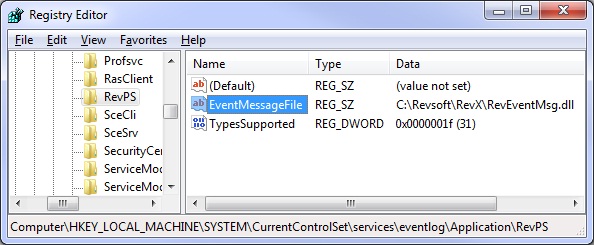
Registering the DLL is quite simple: you need to create a new key with the name of your Event Source (We used the string “RevPS” for this example) under this path:

HKEY_LOCAL_MACHINE\SYSTEM\CurrentControlSet\services\eventlog\Application\

… and set a couple of values like so (this can be automated easily via a .reg file):
Now if you call the LOG_EVENT method your Event Log entry will look like this:

Much better.

If you are interested in reading further on the subject of the Windows Event Log you can find full documentation on Microsoft’s MSDN website here,

[Edit: 24 Apr 13 – Call_Method renamed to Exec_Method]

(Disclaimer: This article is based on preliminary information and may be subject to change in the final release version of OpenInsight 10).

The Set_Property_Only subroutine

One of the problems with the existing Set_Property function is that it also performs an implicit Get_Property operation to return the previous contents of the property to the caller.  In many cases this information is simply discarded after the “Set” making the “Get” call actually unnecessary, and this inefficiency goes unnoticed as the quantity of information retrieved during the “Get” is small.  However, in some cases the effect is noticeable: For example, setting the ARRAY property of an EditTable that contains several thousand rows to null (i.e. clearing it), will produce a noticeable delay while the ARRAY contents are accessed and returned.

A new subroutine, called Set_Property_Only, has been added to the OpenInsight 10.  This operates in the same way as the existing Set_Property function except for the fact that it doesn’t bother performing a Get_Property operation to return the previous property contents to the caller.  This helps you to optimize your code for better performance.