
OpenInsight 10.2.3 brings a much needed update to the venerable Scan Repository tool, providing an updated user interface, full support for new repository types, and some new methods for problem detection and repair. In this post we’ll take a look at each of these areas in more detail, and how the various options work when repairing your system.
A new user interface
The Scan Repository tool is accessed from the IDE main menu via the Tools\Repository menu item and then choosing the “Scan Repository For Errors” option (or alternatively by executing the RTI_IDE_SCAN_REP form via the System Monitor). Users of previous incarnations of the Scan Repository tool will notice an immediate change in the user interface as it is no longer a “wizard” style UI, but now shows all of the scanning options, progress information and results on a single form instead:

Using the scanner is a simple process:
- Ensure the Scan Prerequisites are met.
- Choose the Scan Options.
- Click the “Analyze” button to begin the scan. Progress information will be shown at the top of the form and the scan can be cancelled at any point.
- Review the results and, if necessary, select the appropriate repair action. These appear in dropdown lists in the “Action” column of the results table and can be one or more of the following options (depending on the error):
- Add
- Delete
- Ignore
- Make sure that the items you want to fix are highlighted (selected) in the list (Remember to use the context menu to help with the selection process!).
- When ready click the “Process” button to begin the repair process.
- Review the repair results.
- Note that some repairs may not be able to be completed automatically. In this case the corresponding action item may change to an “Edit” button so that the problem item can be fixed manually.
- Details of errors encountered during the repair process are shown in a tooltip when the mouse is hovered over a problem item.
Scan Prerequisites
Repairing errors in your repository involves possible changes to some fundamental system components, so the following requirements must be met before the scan can take place:
- Ensure that you have backed up your system and check the “A recent backup is available” check box.
- Ensure that all others users are logged out of your system, otherwise the scan cannot proceed. The details of other logged-in users will appear in the Users list to help identify them.
Scan Options
There are two categories of scanning options. The first, “Types and Classes”, scans the core repository records to ensure that they are all correct, while the second category, “Entities” scans the normal application components.
Scanning for Types and Classes
The functionality of the repository is based heavily on the information contained in the following three locations, so it is essential that these items are correct:
- REPFAMILY entities (SYSREPOSTYPEFAMILIES records)
- REPTYPE entities (SYSREPOSTYPES records)
- REPCLASS entities (SYSREPOSCLASSES records)
These are referred to as FTC entities (Family/Type/Class). They can be one of two types:
- “Known” – these are the FTC entities are that are supplied by Revelation.
- “Custom” – these are non-Revelation FTC entities added by developers that have been marked as valid in a previous “Types and Classes” scan (When an “unknown” FTC entity is first encountered in a repository scan it can be flagged as “custom” so it is considered valid in subsequent scans – see the “Unknown” class of errors in the table below).
Verify Repository Types and Classes

The state of the FTC entities can be validated by checking the “Verify Repository Types and Classes” box which ensures that this process takes place before any other normal entities are checked.
Checks performed during this scan include:
- All known FTC entities are present and not missing any critical information.
- All custom FTC entities which have been flagged as valid are not missing any critical information.
- All other FTC entities that are not flagged as custom are reported as “Unknown” so they can be reviewed.
Note that if the Verify Repository Types and Classes scan produces an error then the scanning process will halt as it will not be possible to scan the rest of the repository while core parts of it are in a possible error state.
The Verify Repository Types and Classes scan can produce the following errors:
| Error | DESCRIPTION |
|---|---|
| Missing Known Type Family, Missing Known Type, Missing Known Class | One of the known FTC entities is missing. The default version can be added back into the system using the “Add” action. |
| Unknown Type Family, Unknown Type, Unknown Class | An unknown FTC entity has been found. It can be added as a custom type using the “Add” action, or removed using the “Delete” action. Items that have been added are marked as custom and treated as a valid FTC type in future scans. |
| Missing Repository Record | The raw FTC body record is missing a corresponding SYSREPOS header record. A default SYSREPOS record can be created using the “Add” action. (Note: OpenInsight repository entities are usually comprised of two components: A “header” record in the SYSREPOS table, and a “body”. The latter can be a record in a table or an OS file depending on the type of entity). |
| Bad Repository Sub-key | The SYSREPOS header record for the FTC entity has an invalid SUBKEY entry. The “Add” action may be used to correct this. |
| Missing Title, Missing Icon, Missing Image, Missing Type Family, Missing SCM Format, Missing SCM Include, Missing Storage Type, Missing Location, Missing RDK Extract Type, Missing Key Format, Missing Designer Tool | The FTC body record is missing some required information. If this is a known FTC entity then the “Add” action may be used to reset the missing value to its default setting. If this is a custom FTC entity the “Add” action will switch to an “Edit” button, which opens the entity for editing in the IDE. |
| Missing Event Class | A custom event (added via the Event Designer tool) is missing a corresponding SYSEPOSCLASSES record. The “Add” action may be used to add a default record. |
Reset to default values

Selecting this option ensures that all known Revelation-supplied FTC entities are reset to their default values during the scan. This option can be used to ensure that your repository is always in a good state.
Scanning Entities
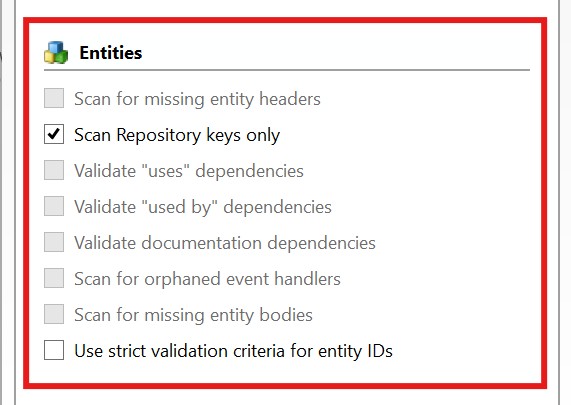
This part of the process scans the rest of the repository based on the options chosen:
| Option | DescrIPTION |
|---|---|
| Scan for missing entity headers | Scans a set of core tables looking for missing repository header (SYSREPOS) records. Due to the fact that it can allow “lost” entities to be readded to the repository it is recommended that this option be run before any others. If this option is selected all of the other Entity scanning options will be disabled. |
| Scan repository keys only | Only checks the validity of repository header (SYSREPOS) keys and does not check the state of the entity itself. The only other option allowed with this selection is “Use strict validation criteria for entity IDs”. |
| Validate “uses” dependencies | Ensures any entities flagged as “used” by the entity being scanned actually exist. If they don’t the link is automatically removed. |
| Validate “used by” dependencies | Ensures any entities flagged as “used-by” by the entity being scanned actually exist. If they don’t the link is automatically removed. |
| Validate “documentation” dependencies | Ensures any documentation entities linked to the entity being scanned actually exist. If they don’t the link is automatically removed. |
| Scan for orphaned event handlers | Event entities (source and executable) are checked to ensure that they are linked to their parent forms, and that the parent forms actually exist. |
| Scan for missing entity bodies | Validates that each repository entity has a corresponding body record or OS file as appropriate. |
| Use strict validation criteria for entity IDs | Validates that keys in the SYSREPOS table conform to a limited set of characters. |
Note: If your FTC entities are not in good order then it is possible that the Entities scan will detect this and halt with a message informing you that you must “verify the Repository Types and Classes and then try again”. In this case please run the “Types and Classes” verification described previously to fix this before you go any further.
When the “Scan for missing entity headers” box is checked the Entities scan can produce the following errors:
| Error | Description |
|---|---|
| Orphan – Missing SYSREPOS [<id>] | An entity body record is missing a corresponding SYSREPOS header record. The “Add” action may be used to add a default header record, the “Delete” action may be used to delete the orphaned body. |
| Orphan – Bad App [<id>] | An entity body record is linked to a non-existent application ID. The “Delete” action may be used to delete the record (and any associated SYSREPOS header record). |
| Orphan – Suspected Bad App [<id>] | Due to the polymorphic nature of the records in some tables (primarily SYSPROCS and SYSOBJ) it is not always possible to accurately determine what type of record is being checked. This error can be raised in such circumstances, and the “Delete” action may be used to remove the record in question. However, it is advised that you review the record in question before you delete it! |
| Orphan – Bad Key Format [<id>] | A known type has a badly formatted key. The “Delete” action may be used to remove the record in question. |
When the “Scan for missing entity headers” box is not checked the Entities scan can produce the following errors:
| ERROR | Description |
|---|---|
| Bad Key | The entity has a badly formatted SYSREPOS key. The “Delete” action may be used to remove the entity. |
| Bad App | The APPID of the SYSREPOS key refers to an invalid application ID. The “Delete” action may be used to remove the entity. |
| Bad Type | The TYPEID of the SYSREPOS key refers to an invalid SYSREPOSTYPES type ID. The “Delete” action may be used to remove the entity. |
| Bad Class | The CLASSID of the SYSREPOS key refers to an invalid SYSREPOSCLASSES class ID. The “Delete” action may be used to remove the entity. |
| Deprecated Event | An entity has been found for a class of event that is no longer supported in version 10. The “Delete” action may be used to remove the event in question. |
| Strict Test | The SYSREPOS header key failed the “strict” test and is considered to be badly formatted. The “Delete” action may be used to remove the entity. |
| No location | The SYSREPOS header record is missing a required location (e.g. an IMAGE type is missing the location of the OS image file). The “Delete” action may be used to remove the entity. |
| No Body | The entity is missing a body record or OS File as determined by its type. This can happen if the body record exists but is null, or the ACCESS method returns null. The “Delete” action may be used to remove the SYSREPOS header record. |
| No Body <FSError> | The entity’s body record cannot be accessed because of a filing system error. The “Delete” action may be used to remove the SYSREPOS header record. |
| Open Error | A table open error occurred when checking a DBTABLE type entity. The “Delete” action may be used to remove the SYSREPOS header record. |
| Orphan – Missing Form | An event script entity is referring to a form entity that does not exist (i.e. there is no SYSREPOS header record for the form). The “Delete” action may be used to remove the event entity. |
| Orphan – Missing Form Body | An event script entity is referring to a form entity whose body record does not exist (i.e. there is no SYSREPOSWINS or SYSREPOSWINEXES record for the form). The “Delete” action may be used to remove the event entity. |
| Orphan – Missing Control | An event script entity is linked to a control that does not exist on the form. The “Delete” action may be used to remove the event entity. |
| Orphan – Event Not Linked | An event script entity has been found for a control or form that does exist but it is not linked to it. The “Add” option may be used to create the link, or the “Delete” action may be used to remove the event. (Note: Please review the control and event in question before you decide to add it as there may be a good reason that it is no longer linked!) |
| Orphan – Missing Script Exe | An event script debug-table entity has no corresponding event script executable entity. The “Delete” action may be used to remove the event script debug-table entity. |
| Orphan – Event Cannot Be Linked | An executable event script entity cannot be dereferenced to an owner. The “Delete” action may be used to remove the executable event script. |
The Scan Repository context menu
The results list of the Scan Repository tool includes a comprehensive context menu to help with selecting the items to repair along with an export option and an easy way to view the details of a specific entity:
| Menu Item | Description |
|---|---|
| Process all items | Executes the specified repair action (if appropriate) for all entities in the results list. |
| Process selected items only | Executes the specified repair action (if appropriate) for all selected entities in the results list. |
| Set all items to “Add” | Sets the action option of all items in the results list to “Add” (but only if they have an “Add” option). |
| Set all items to “Delete” | Sets the action option of all items in the results list to “Delete” (but only if they have a “Delete” option). |
| Set all items to “Ignore” | Sets the action option of all items in the results list to “Ignore” (but only if they have an “Ignore” option). |
| Set all selected items to “Add” | Sets the action option of all selected items in the results list to “Add” (but only if they have an “Add” option). |
| Set all selected items to “Delete” | Sets the action option of all selected items in the results list to “Delete” (but only if they have a “Delete” option). |
| Set all selected items to “Ignore” | Sets the action option of all selected items in the results list to “Ignore” (but only if they have an “Ignore” option). |
| Select all items | Selects all of the items in the results list. |
| Clear all selections | Unselects all of the items in the results list. |
| View <entity> | Attempts to open both the SYSREPOS header record and body record (if possible) for the specified entity. These are opened as “raw” records in the IDE. |
| Export results | Export the contents of the results list to a CSV file. |
Conclusion
The new Scan Repository tool is available in OpenInsight v10.2.3 onwards. Hopefully it will allow you to keep your repository in good shape moving forwards!
 Building OpenInsight 10